How to Read Google Docs Aloud: A Complete Guide
Reading Google Docs aloud is a game-changer for proofreading, accessibility, and multitasking. Whether you want to catch typos by ear or consume documents hands-free, this guide covers every method available in 2025.
We'll walk through built-in browser tools, Chrome extensions, and dedicated AI solutions like AI Narrator. For a deeper dive into document conversion, see how to convert Google Docs to audio files.
Quick Answer: The easiest way to read Google Docs aloud is with the AI Narrator Chrome extension. It adds a sidebar to Google Docs with 32 natural AI voices, supports 15+ languages, and lets you download audio as WAV files.
Method 1: Use Chrome's Built-in Read Aloud
Chrome has a built-in text-to-speech feature that works on any webpage, including Google Docs. Select the text you want read aloud, right-click, and choose "Read aloud" from the context menu. It's fast and doesn't require any extensions.
Chrome has a built-in text-to-speech feature that works on any webpage, including Google Docs. Select the text you want read aloud, right-click, and choose "Read aloud" from the context menu. It's fast and doesn't require any extensions.
No Installation
Works directly in Chrome without any downloadsSimple Controls
Play, pause, and skip with minimal effortLimited Voices
Only offers basic robotic voices with no varietyNo Export
Cannot save audio output as a file
Method 2: Use AI Narrator Extension
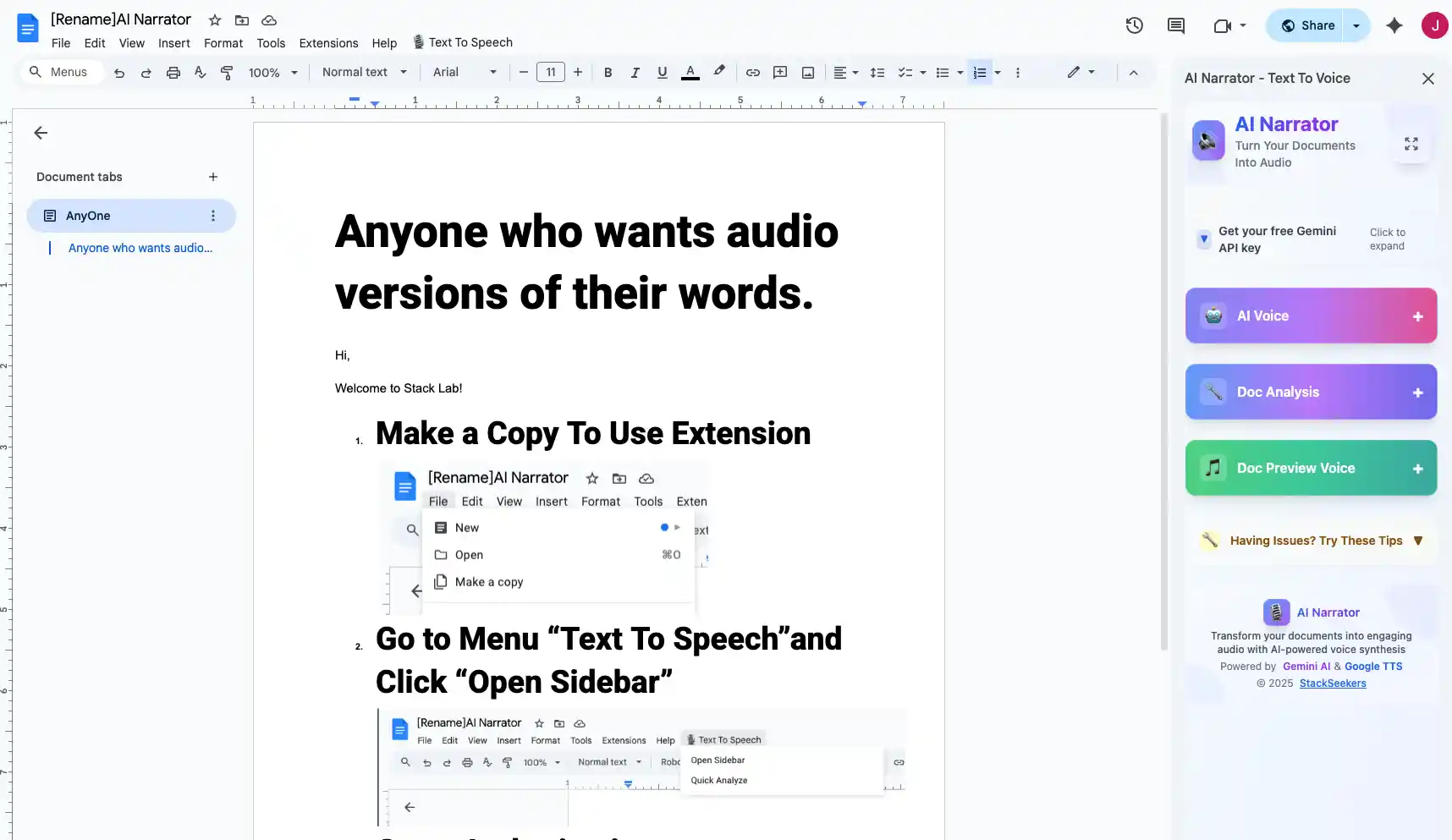
For the best experience, install the AI Narrator extension for Google Docs. It adds a toolbar button that lets you select voices, generate natural-sounding audio, and download WAV files.
For the best experience, install the AI Narrator extension for Google Docs. It adds a toolbar button that lets you select voices, generate natural-sounding audio, and download WAV files.
Step 1: Install AI Narrator
Go to the Chrome Web Store and add the AI Narrator extension. It installs in one click and appears in your Google Docs toolbar.
Step 2: Open Your Document
Open any Google Doc. The AI Narrator panel will appear on the right side of the editor.
Step 3: Select and Play
Highlight the text you want read aloud, choose your preferred voice and language, then click play. AI Narrator reads with natural intonation and emphasis.
Step 4: Adjust Settings
You can adjust speed, pitch, and volume. Switch between 32 voices to find the perfect tone for your content.
Method 3: Use Google Docs Accessibility Tools
Google Docs includes built-in accessibility features like screen reader support. These tools are designed primarily for visually impaired users but work well for anyone who wants text read aloud. However, they lack the voice quality and features of purpose-built TTS tools. Learn more in our Google Docs accessibility guide.
Google Docs includes built-in accessibility features like screen reader support. These tools are designed primarily for visually impaired users but work well for anyone who wants text read aloud. However, they lack the voice quality and features of purpose-built TTS tools. Learn more in our Google Docs accessibility guide.
| Method | Voice Quality | Ease of Use | Best For |
|---|---|---|---|
| Chrome Read Aloud | Basic | Very easy | Quick checks |
| AI Narrator | Professional | Easy | High-quality listening |
| Screen Reader | Basic | Moderate | Accessibility needs |
| Third-party Extensions | Varies | Easy | Basic playback |
Tips for the Best Listening Experience
For optimal results, use AI Narrator with a quiet environment and good headphones. Select a voice that matches the tone of your content — professional for business documents, warm and conversational for personal writing. Using multilingual TTS is great for language learning.
For optimal results, use AI Narrator with a quiet environment and good headphones. Select a voice that matches the tone of your content — professional for business documents, warm and conversational for personal writing. Using multilingual TTS is great for language learning.
この音声を自分で聴いてみたいですか?
今すぐAI Narratorを無料でお試しください。登録は不要です。