Does Google Docs Have Text to Speech? Everything You Need to Know
Find out if Google Docs has built-in text-to-speech, what options are available, and how to get natural AI voice read-aloud in your documents.
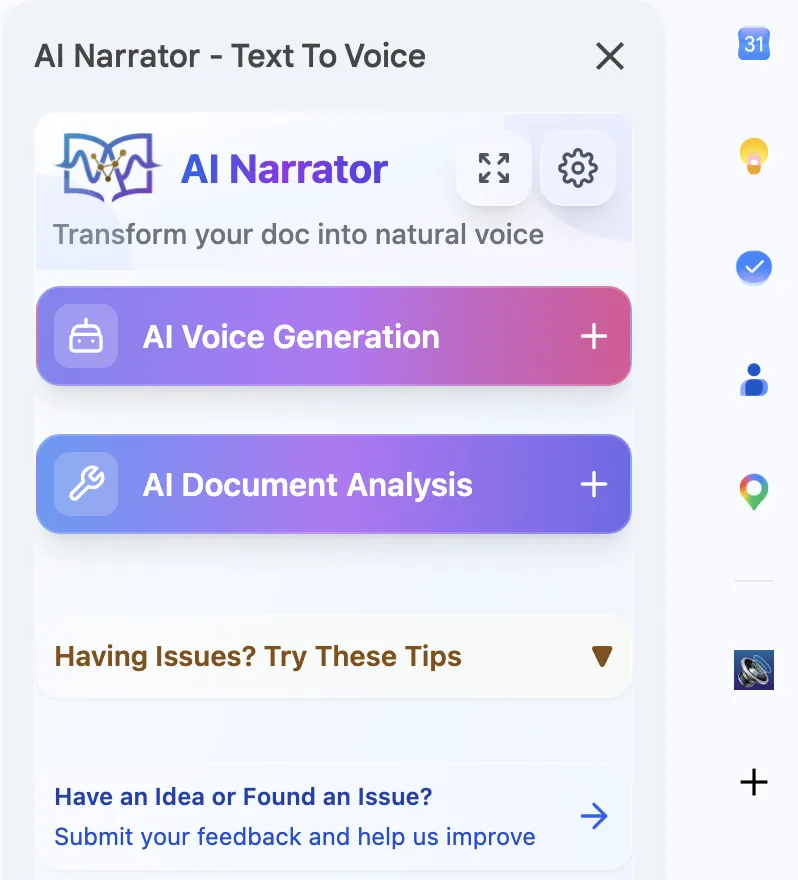
Quick Answer: Google Docs does not have a built-in text-to-speech button. However, you can use Chrome's built-in Read Aloud feature, Google's Screen Reader support, or a dedicated extension like AI Narrator for natural AI voices with 32 voice options and 15+ languages.
While Google Docs lacks a standalone "Read Aloud" button, there are a few native and semi-native options worth understanding before exploring third-party tools.
Chrome Read Aloud
Chrome's built-in accessibility feature can read web pages and Google Docs aloud using the system's default voice. It's basic but functional for quick read-aloud sessions.Google Screen Reader Support
Google Docs is designed to work with screen readers like ChromeVox and JAWS. This is intended for accessibility rather than casual listening.Google Text-to-Speech (Android)
On Android devices, Google's TTS engine can read text aloud in supported apps. This doesn't directly integrate with Google Docs on desktop.
Chrome's Read Aloud feature works by synthesizing speech from the page content, but it has significant limitations for Google Docs users. The voice quality is robotic and lacks the natural flow of modern AI voices. There are no speed or pitch controls. It can't handle multiple languages well. And there's no way to download the audio for offline use or sharing.
| Feature | Chrome Read Aloud | AI Narrator |
|---|---|---|
| Voice Quality | Basic system voice | 32 natural AI voices |
| Language Support | 1-2 languages | 15+ languages |
| Speed Control | No | Yes, adjustable |
| Download Audio | No | Yes, WAV format |
| Text Selection | Full document only | Select specific text |
| Integration | Browser-level overlay | Native Google Docs panel |
Step 1: Check Chrome's Built-in Read Aloud
Right-click anywhere in Google Docs and select "Read aloud selection" from the context menu. Chrome will attempt to read the page content. This uses your system's default TTS voice and works for basic read-aloud needs.
Step 2: Explore Chrome's Accessibility Settings
Go to Chrome Settings > Accessibility and enable "ChromeVox" or explore additional TTS voices. You can install third-party speech engines for more voice options, though the quality remains limited.
Step 3: Try a Dedicated Extension Like AI Narrator
For a dramatically better experience, install AI Narrator from the Chrome Web Store. It adds a native panel to Google Docs with 32 AI voices, speed controls, multi-language support, and the ability to download your audio as a WAV file.
Step 4: Choose Your Voice and Listen
Browse through AI Narrator's voice library, preview each one, and start listening. You can select specific sections to read or process the entire document.
Text-to-speech in Google Docs serves a wide range of users. Students use it to review notes while commuting. Writers and editors use it to catch errors by listening to their work. People with dyslexia or visual impairments rely on it for accessibility. Language learners use it to hear native pronunciation. And busy professionals use it to consume documents hands-free during workouts or chores.
Proofreading by Listening
Your ear catches mistakes your eye misses. TTS is one of the most effective proofreading techniques.Accessibility
Provides audio access for users with visual impairments, dyslexia, or reading difficulties.Multitasking
Consume documents while cooking, exercising, or commuting — no screen required.Language Learning
Hear accurate pronunciation in 15+ languages with natural AI voices.
AI Narrator goes far beyond what Google Docs' built-in options can offer. It's specifically designed as a Google Docs extension, which means it understands your document structure and creates audio that respects headings, paragraphs, and formatting. The 32 AI voices sound remarkably human, and you can switch between them instantly. For a deeper dive, check our comparison of the best TTS tools for Google Docs.
¿Quieres escuchar estas voces tú mismo?
Pruebe nuestro Narrador AI gratis ahora mismo. No es necesario registrarse.
Reproducir muestras de voz¿Listo para probar AI Narrator?
Comienza a convertir tus Google Docs en audio profesional hoy. ¡Gratis para siempre!
Agregar al Doc - Es gratis