How to Make Google Docs Read Aloud: 4 Methods That Actually Work
¿Quieres escuchar estas voces tú mismo?
Pruebe nuestro Narrador AI gratis ahora mismo. No es necesario registrarse.
Key Takeaways:
• Google Docs does not have a native Read Aloud button, but you can use Chrome's built-in TTS, screen readers, or extensions.
• Chrome's Read Aloud is free but sounds robotic and has no download option.
• Screen readers like ChromeVox are designed for accessibility, not casual listening.
• AI Narrator is the best solution: 32 natural AI voices, 50+ languages, WAV downloads, and deep Google Docs integration.
• All methods work on Windows, Mac, and Chromebook. Mobile support varies by tool.
Many users confuse Google Docs' Voice Typing feature with text-to-speech. They're opposite functions. Voice Typing (found under Tools > Voice typing) listens to your voice and types what you say — it's speech-to-text. Text-to-speech does the reverse: it reads your written text aloud. If you've been looking for how to use text to speech on Google Docs and accidentally found Voice Typing, you're not alone. The two features are in the same menu but serve completely different purposes.
Google has prioritized screen reader compatibility over a casual "Read Aloud" feature. Their approach is to make Google Docs work well with dedicated screen reader software rather than building TTS into the editor itself. This works well for accessibility users who already have screen readers installed, but it leaves casual users without an obvious way to listen to their documents. The good news is that the solutions exist — they just require knowing where to look.
Step 1: Open Your Google Doc
Navigate to docs.google.com and open the document you want read aloud. Make sure you're using the Chrome browser — this feature doesn't work in Firefox, Safari, or Edge.
Step 2: Enable Read Aloud in Chrome Settings
Click the three-dot menu in Chrome (top-right corner) and go to Settings > Accessibility. Toggle on "Read aloud highlighted text" if it's not already enabled. On newer Chrome versions, you may also see a "Read aloud" option directly in the right-click context menu.
Step 3: Right-Click and Select Read Aloud
Place your cursor where you want reading to start, then right-click anywhere in your document. Select "Read aloud" from the context menu. Chrome will begin reading from that point using the system's default voice.
Step 4: Control Playback
A small playback toolbar appears at the top of the page with play/pause, previous paragraph, and next paragraph buttons. You can also adjust the reading speed and voice in Chrome Settings > Accessibility > Manage voices.
No Installation Required
Works immediately in Chrome without any extensions or add-onsCompletely Free
No cost, no premium tiers, no usage limitsBasic Playback Controls
Play, pause, skip forward and backward between paragraphsSpeed Adjustment
Slow down or speed up the reading pace in settings
Robotic Voice Quality
Uses your system's default TTS voice, which sounds mechanical and lacks natural intonationLimited Voice Options
Only 2-3 voices available depending on your operating systemNo Audio Download
Can't save the audio as a file for offline listening or sharingNo Language Variety
Limited to voices installed on your system, usually English only
Chrome's built-in TTS is ideal when you need a quick, no-fuss way to hear a short document. It's great for accessibility users who already have screen readers configured on their system. It works well for a quick proofread of a few paragraphs. But for longer documents, professional-quality audio, or multilingual content, you'll want to explore the other methods in this guide.
ChromeVox is Google's own screen reader, built into ChromeOS and available as a Chrome extension. It's designed specifically for Google Workspace apps and provides the tightest integration with Google Docs. ChromeVox reads everything on screen — menus, toolbars, and document content — and supports keyboard shortcuts for navigation. It's the best screen reader option for Google Docs on a Chromebook.
NVDA (NonVisual Desktop Access) is a free, open-source screen reader for Windows. It's one of the most popular screen readers in the world and works well with Google Docs in Chrome. NVDA reads document content, formatting, and navigation elements. You can download it from nvaccess.org and configure it for Google Docs in its settings.
VoiceOver is Apple's built-in screen reader, available on Mac, iPhone, and iPad. On Mac, enable it in System Settings > Accessibility > VoiceOver. VoiceOver integrates with Google Docs in Safari and Chrome, reading document content and providing navigation shortcuts. On iOS, VoiceOver works with the Google Docs mobile app for on-the-go listening.
TalkBack is Google's screen reader for Android. It works with the Google Docs Android app, allowing you to listen to documents on your phone or tablet. Enable it in Settings > Accessibility > TalkBack. Double-tap to activate elements, and use swipe gestures to navigate through your document.
Full Document Navigation
Navigate by heading, paragraph, word, or character with keyboard shortcutsPlatform Native
Built into your operating system with no extra software needed (except NVDA on Windows)Accessibility Standard
The industry-standard approach for users with visual impairments
Steep Learning Curve
Screen readers use complex keyboard shortcuts and take time to masterRobotic Voice Quality
Default voices sound mechanical and lack the natural flow of AI narrationNot Designed for Casual Listening
Screen readers read everything on screen including menus and toolbars, not just your documentNo Audio Export
Can't download the audio as a file for sharing or offline use
Most Read Aloud extensions follow the same basic pattern: you install them from the Chrome Web Store, they add an icon to your Chrome toolbar, and when you click the icon while on a Google Doc, they begin reading the page. The better extensions can distinguish between document content and Google Docs' interface elements, reading only the text you actually wrote. Some let you select specific text to read, while others process the entire document.
Easy Installation
One-click install from the Chrome Web Store, no configuration neededBetter Voice Quality
Many extensions offer improved voices over Chrome's built-in TTSText Selection
Most let you select specific text to read, rather than the entire pageMulti-Language Support
Support for 50+ languages in many extensions
Limited Free Tiers
Many popular extensions restrict free usage to a few minutes per dayGeneric Integration
Most are designed for web pages, not specifically for Google DocsNo Audio Download
Most free extensions don't let you save audio as a filePrivacy Concerns
Some extensions send your document text to external servers for processing
Why AI Narrator? It's the only tool that combines natural AI voices, deep Google Docs integration, multi-language support, and audio file downloads — all in a single extension. Whether you're proofreading, creating audio content, or making documents accessible, AI Narrator handles it all.
32 Natural AI Voices
Professional voices that sound human — not robotic or monotone50+ Languages
Support for English, Spanish, French, Hindi, Chinese, Arabic, and dozens moreWorks Inside Google Docs
A native sidebar that lives inside your document editor, no tab-switching requiredDownload Audio Files
Export your narration as WAV files for offline listening, podcasts, or presentations
Read Selected Text
Highlight a paragraph or section and AI Narrator reads only that selectionSpeed Control
Adjust playback speed from 0.5x to 2x to match your listening preferenceAI Document Analysis
Intelligent processing that respects headings, paragraphs, and document structureFree to Start
Begin using AI Narrator for free with no credit card required
Step 1: Install AI Narrator from the Chrome Web Store
Go to the Chrome Web Store and search for "AI Narrator" or visit the extension page directly. Click "Add to Chrome" and confirm the installation. The extension takes about 10 seconds to install and adds an icon to your Chrome toolbar.
Step 2: Open Your Google Document
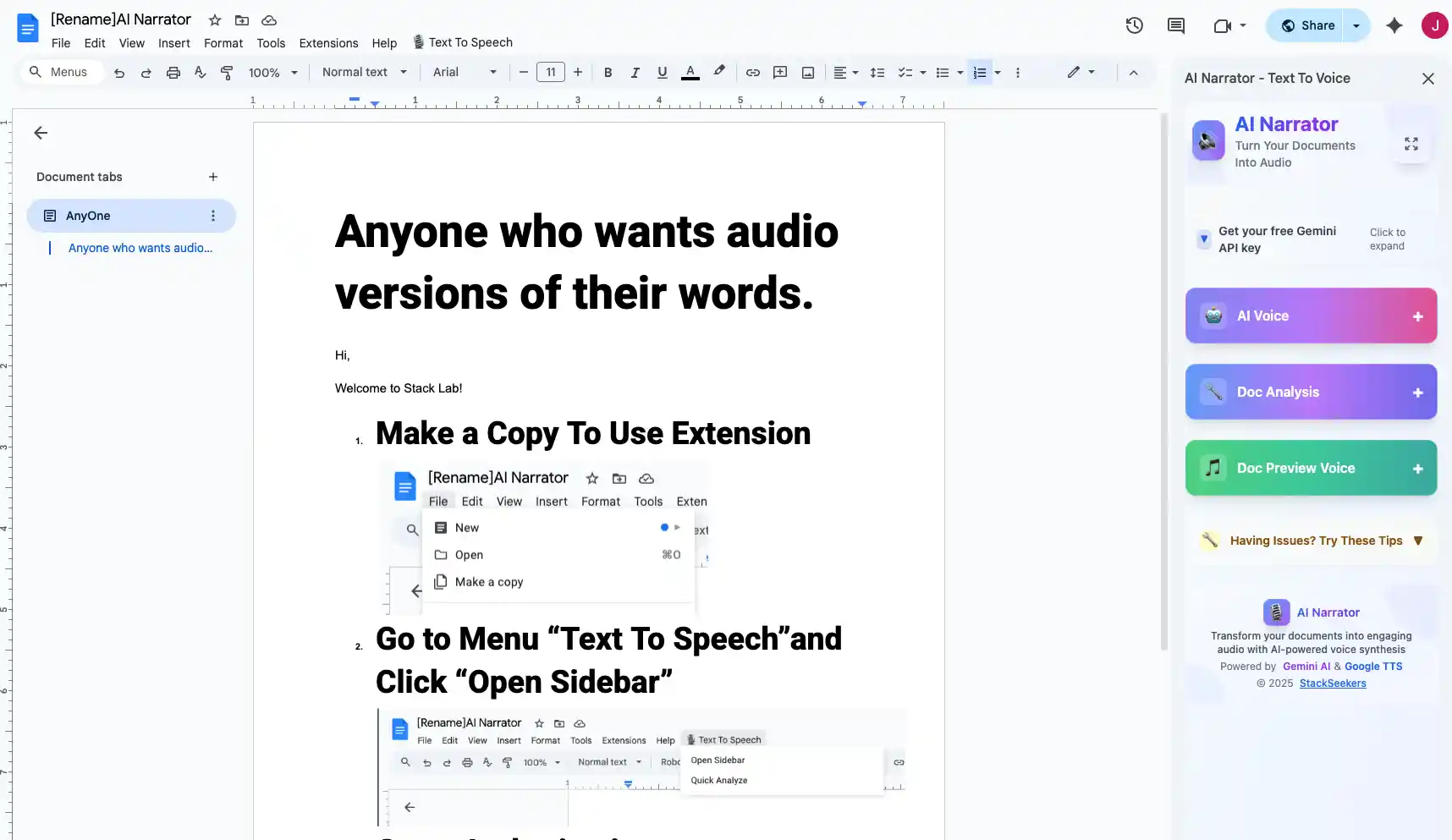
Navigate to docs.google.com and open any document. You can also open Google Docs from Google Drive. The AI Narrator sidebar will appear on the right side of your editor automatically.
Step 3: Launch the AI Narrator Sidebar
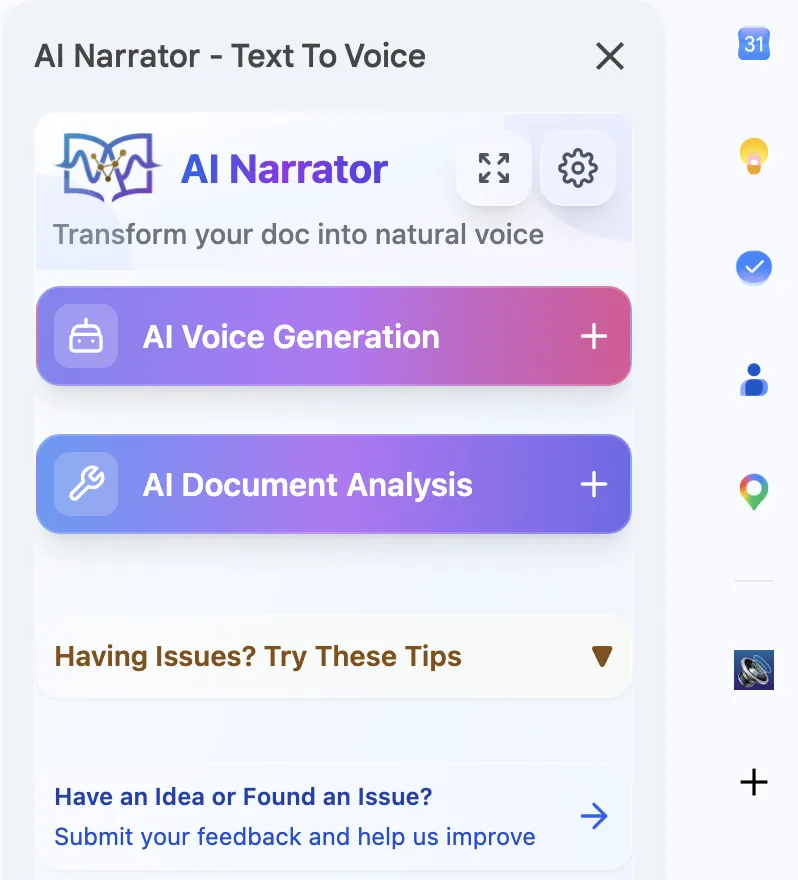
If the sidebar doesn't appear automatically, click the AI Narrator icon in your Chrome toolbar or find it under Extensions in the Google Docs menu. The sidebar opens with a clean, intuitive interface showing voice options, playback controls, and settings.
Step 4: Choose Your Voice
Browse through the 32 available AI voices. You can filter by language, accent, or style. Click the preview button next to any voice to hear a sample. Popular choices include Emma (American English), Sophie (British English), and Lucas (Australian English).
Step 5: Select Text or Entire Document
Highlight the specific text you want read aloud, or leave nothing selected to have AI Narrator read the entire document. The extension intelligently handles both modes, skipping headers, footers, and formatting elements.
Step 6: Generate and Listen
Click the "Generate" button. AI Narrator processes your text and begins playback within seconds. Use the playback controls to pause, skip, or adjust speed. The audio plays through your speakers or headphones with natural intonation and pacing.
Step 7: Download Your Audio
Click the download button to save your narration as a WAV file. The file is ready to use in presentations, podcasts, YouTube videos, or any other project. You can also share it directly with colleagues or students.
Turn lecture notes, study guides, and textbook chapters into audio files you can listen to while commuting, exercising, or doing chores. Research shows that combining reading with listening improves retention by up to 40%. A student studying for finals can generate audio from their Google Doc notes and listen during their morning jog.
Your ear catches mistakes your eye misses. Awkward phrasing, missing words, repeated sentences, and typos all become obvious when you hear them spoken aloud. Many professional editors use text-to-speech as a final proofreading step before publication. AI Narrator's natural voices make this process comfortable even for long documents.
Repurpose blog posts, newsletters, and articles into podcast episodes or YouTube narration. AI Narrator's 32 voices let you match the tone of your content — professional for business content, warm and conversational for personal blogs, energetic for promotional material. Download the WAV file and import it into your editing software.
Teachers can create audio versions of worksheets, reading assignments, and study materials. This is especially valuable for students with dyslexia, visual impairments, or learning differences. AI Narrator's natural voices reduce listening fatigue compared to robotic screen reader voices, making it easier for students to stay engaged during long listening sessions.
Listen to reports, proposals, and meeting notes during your commute or while traveling. A 20-page report that takes 45 minutes to read can be listened to in 20 minutes at 2x speed. AI Narrator's speed control lets you find the perfect pace for different types of content — slower for complex financial reports, faster for straightforward updates.
AI Narrator supports 50+ languages with native-sounding voices. A Spanish student can have their Google Doc read aloud in Castilian Spanish. A Japanese learner can hear natural Japanese pronunciation. This is invaluable for language classes, translation work, and international communication.
For users with visual impairments, dyslexia, or reading difficulties, AI Narrator provides an alternative to traditional screen readers. The natural AI voices are easier to listen to for extended periods, and the simple interface doesn't require learning complex keyboard shortcuts. It's also useful for users with repetitive strain injuries who need to give their eyes a rest.
Studying
Turn notes into audio for learning during commutes or exerciseProofreading
Catch errors by ear that you miss when reading silentlyPodcasts
Convert written content into audio for podcast episodesYouTube Narration
Generate voiceovers for videos from your written scripts
| Feature | Chrome Built-in | Read Aloud Extension | Screen Reader | AI Narrator |
|---|---|---|---|---|
| Voice Quality | Robotic | Decent | Robotic | Natural AI |
| Number of Voices | 2-3 | 5-10 | 2-3 | 32 |
| Languages | System voices | 10-50 | System voices | 50+ |
| Download Audio | No | Limited | No | Yes (WAV) |
| Speed Control | Basic | Yes | Varies | 0.5x-2x |
| Google Docs Integration | Browser overlay | Toolbar button | Full support | Native sidebar |
| Text Selection | Full page | Yes | Yes | Yes |
| Best For | Quick checks | Casual listening | Accessibility | Everything |
| Cost | Free | Free / Paid | Free | Free / Premium |
Chrome Read Aloud on Windows
Open Google Docs in Chrome. Right-click anywhere in the document and select "Read aloud." Chrome reads from your cursor position using the system's default voice. Adjust speed in Chrome Settings > Accessibility.
AI Narrator on Windows
Install AI Narrator from the Chrome Web Store. Open any Google Doc and the sidebar appears automatically. Choose from 32 voices, adjust speed, and click Generate. Download your audio as a WAV file.
NVDA Screen Reader on Windows
Download NVDA from nvaccess.org. Install and run it. Open Google Docs in Chrome and enable screen reader support under Tools > Accessibility. NVDA reads your document using keyboard shortcuts. Press NVDA + Down Arrow to start reading.
Chrome Read Aloud on Mac
Open Google Docs in Chrome. Right-click and select "Read aloud." For the best results, make sure you've enabled the Read Aloud feature in Chrome Settings > Accessibility first.
AI Narrator on Mac
Install AI Narrator from the Chrome Web Store. The extension works identically on Mac as on Windows. Open your Google Doc, select a voice from the 32 available options, and click Generate.
VoiceOver on Mac
Enable VoiceOver in System Settings > Accessibility > VoiceOver. Open Google Docs in Chrome or Safari. VoiceOver reads your document and provides navigation shortcuts. Press VO + A to read all, or VO + Right Arrow to move through elements.
ChromeVox on Chromebook
Press Ctrl + Alt + Z to enable ChromeVox. Open Google Docs and ChromeVox reads the page. Use the ChromeVox cursor (Search + Arrow keys) to navigate. Press Search + Right Arrow to move forward through text.
AI Narrator on Chromebook
Install AI Narrator from the Chrome Web Store. It works the same way as on any other platform. The sidebar opens in your Google Doc and you can choose from 32 voices, adjust speed, and download audio.
TalkBack Screen Reader
Enable TalkBack in Settings > Accessibility > TalkBack. Open the Google Docs app and navigate to your document. TalkBack reads the content as you swipe through it. Use two-finger gestures to scroll and double-tap to interact with elements.
Google TTS Engine
Install Google Text-to-Speech from the Play Store. Go to Settings > System > Languages & input > Text-to-speech output and select Google TTS as the engine. Some apps, including Google Docs, will use this engine when accessibility features are enabled.
AI Narrator on Mobile Browser
Open Google Docs in Chrome on your Android phone. Install AI Narrator and access it through the Chrome extension menu. While the mobile experience is not as seamless as desktop, AI Narrator still provides natural voice playback and audio downloads.
Speak Screen on iOS
Enable Speak Screen in Settings > Accessibility > Spoken Content. In the Google Docs app, swipe down from the top of the screen with two fingers. iOS reads the entire screen aloud. You can adjust speaking rate and voice in the Spoken Content settings.
VoiceOver on iOS
Enable VoiceOver in Settings > Accessibility > VoiceOver. Open Google Docs and use VoiceOver gestures to navigate your document. Swipe right to move forward through text, or use the rotor (two-finger旋转 gesture) to navigate by heading or paragraph.
AI Narrator via Chrome on iOS
Open Google Docs in Chrome on your iPhone or iPad. While the full AI Narrator experience is optimized for desktop, you can access basic TTS features through the Chrome browser on iOS. For the best mobile experience, use your desktop to generate audio files and transfer them to your device.
Check that your system volume is turned up and not muted. Make sure you're not using Bluetooth headphones that are connected to a different device. In Chrome, check that the Read Aloud feature is enabled in Settings > Accessibility. If using AI Narrator, ensure the playback volume slider in the sidebar isn't set to zero. Try playing audio from another website to confirm your speakers or headphones are working.
Chrome's Read Aloud sometimes struggles with Google Docs because the document is rendered as a complex canvas element rather than plain HTML. Try selecting all text (Ctrl + A) before right-clicking. If that doesn't work, try refreshing the page and trying again. Some Google Docs extensions conflict with Read Aloud — try disabling other extensions temporarily.
If AI Narrator doesn't appear in your Google Docs toolbar, check that it's enabled in Chrome's extension settings. Go to chrome://extensions and make sure AI Narrator is toggled on. Try refreshing your Google Doc. If the sidebar still doesn't appear, click the Extensions icon (puzzle piece) in Chrome's toolbar and look for AI Narrator in the list.
Some extensions require specific permissions to work with Google Docs. When you install AI Narrator, Chrome will ask for permission to "Read and change your data on docs.google.com." This is necessary for the extension to access your document content. If you denied this permission during installation, go to chrome://extensions, find AI Narrator, click "Details," and update the site permissions.
Text-to-speech features can be affected by Chrome updates, conflicting extensions, or cached data. If something stops working, try these steps: update Chrome to the latest version (chrome://settings/help), clear your browser cache, disable other extensions one by one to find conflicts, or try opening Google Docs in an incognito window. If the problem persists, uninstall and reinstall the AI Narrator extension.
Mobile browsers have more restricted access to TTS APIs. Chrome on Android doesn't support the same Read Aloud features as desktop Chrome. The Google Docs mobile app has limited TTS support compared to the web version. For the full experience on mobile, use a desktop browser to generate audio files, then transfer them to your phone for offline listening.
| Tool | Free Plan | AI Voices | Languages | Audio Download | Best For |
|---|---|---|---|---|---|
| AI Narrator | Yes | 32 natural AI | 50+ | WAV | Everything |
| Chrome Read Aloud | Yes | System TTS | System voices | No | Quick checks |
| Read Aloud Extension | Yes | Google TTS | 50+ | No | Casual listening |
| NaturalReader | Limited (20 min/day) | Premium AI | 20+ | MP3 (paid) | Professional use |
| Speechify | Limited (few min) | Premium AI | 30+ | MP3 (paid) | Web articles |
| ChromeVox | Yes | System TTS | System voices | No | Accessibility |
Yes, Google Docs can read to you, but not through a built-in button. You can use Chrome's Read Aloud feature (right-click > Read aloud), screen readers like ChromeVox or VoiceOver, or install a text-to-speech extension like AI Narrator for natural AI voices.
Google Docs doesn't have a native text-to-speech button, but it supports text-to-speech through Chrome's accessibility features, screen reader compatibility, and third-party Chrome extensions. The most popular option is AI Narrator, which adds a full TTS panel directly inside Google Docs.
There's no "Read Aloud" button inside Google Docs itself. To use Chrome's Read Aloud, right-click anywhere in your Google Doc and select "Read aloud" from the context menu. If you don't see this option, enable it in Chrome Settings > Accessibility.
Google Docs doesn't provide a built-in way to download audio. However, AI Narrator lets you export your narration as a WAV file. Other extensions like NaturalReader and Speechify offer MP3 downloads in their paid tiers.
AI Narrator offers 32 natural AI voices that sound human and engaging. It has more natural-sounding options than any other Google Docs TTS tool, including voices in 50+ languages. Speechify and NaturalReader also offer AI voices, but at higher prices and with more restrictions.
Yes, with some limitations. On Android, use TalkBack or Google's TTS engine. On iOS, use VoiceOver or Speak Screen. AI Narrator works through Chrome on mobile, though the experience is best on desktop. For the highest quality on mobile, generate audio on desktop and transfer the file.
Yes, AI Narrator has a free tier that lets you try all features. Premium plans unlock additional voices, unlimited conversions, and priority processing. You can start using AI Narrator for free with no credit card required.
AI Narrator is the best extension for Google Docs text-to-speech. It's the only extension designed specifically for Google Docs with a native sidebar, 32 AI voices, 50+ languages, and WAV audio downloads. Other extensions like Read Aloud work but lack the voice quality and Google Docs integration.
Chrome's built-in Read Aloud and screen readers work offline using your system's TTS engine. AI Narrator requires an internet connection for AI voice generation, but you can download audio files for offline listening. This makes it easy to create offline audio versions of your documents.
With Chrome's Read Aloud, highlight the text first, then right-click and select "Read aloud." AI Narrator automatically reads only the selected text when you highlight a section before clicking Generate. Screen readers like ChromeVox can read selected text using keyboard shortcuts.
Voice Typing (Tools > Voice typing) converts your spoken words into text — it's speech-to-text. Text-to-speech does the opposite: it reads your written text aloud. They serve completely different purposes. If you want Google Docs to read to you, you need text-to-speech, not Voice Typing.
Yes. Google Docs supports screen readers like ChromeVox, NVDA, VoiceOver, and TalkBack for accessibility. You can also enable screen reader support in Google Docs under Tools > Accessibility settings. For a more comfortable listening experience, AI Narrator's natural voices are easier on the ears during long sessions.
¿Listo para probar AI Narrator?
Comienza a convertir tus Google Docs en audio profesional hoy. ¡Gratis para siempre!
Agregar al Doc - Es gratis