如何让 Google 文档朗读:4 种真正有效的方法
想亲自听到这些声音吗?
立即免费试用我们的人工智能讲述人。无需注册。
主要内容:
• Google 文档没有原生的“朗读”按钮,但您可以使用 Chrome 的内置 TTS、屏幕阅读器或扩展程序。
• Chrome 的朗读功能是免费的,但听起来像机器人,且没有下载选项。
• 像 ChromeVox 这样的屏幕阅读器是为辅助功能设计的,而不是为了休闲收听。
• AI Narrator 是最佳解决方案:32 种自然 AI 语音、50 多种语言、WAV 下载和深度的 Google 文档集成。
• 所有方法在 Windows、Mac 和 Chromebook 上均适用。移动支持因工具而异。
许多用户将 Google 文档的语音输入功能与文本转语音混淆了。它们是相反的功能。语音输入(位于“工具”>“语音输入”下)收听您的声音并键入您所说的话 — 这是语音转文本。文本转语音则相反:它朗读您的书面文本。如果您一直在寻找如何在 Google 文档上使用文本转语音,却意外地找到了语音输入,您并不孤单。这两个功能位于同一个菜单中,但服务于完全不同的目的。
Google 将屏幕阅读器兼容性优先于休闲的“朗读”功能。他们的方法是让 Google 文档与专门的屏幕阅读器软件良好协作,而不是将 TTS 内置到编辑器中。这对于已经安装了屏幕阅读器的辅助功能用户来说效果很好,但对于普通用户来说,却找不到明显的收听文档的方法。好消息是,解决方案是存在的 — 您只需要知道去哪里找。
第 1 步:打开您的 Google 文档
导航至 docs.google.com 并打开您想要朗读的文档。请确保您使用的是 Chrome 浏览器 — 此功能在 Firefox、Safari 或 Edge 中无法使用。
第 2 步:在 Chrome 设置中启用朗读功能
单击 Chrome 右上角的三个点菜单,然后转到“设置”>“辅助功能”。如果尚未启用,请切换打开“朗读选定文本”。在较新的 Chrome 版本上,您可能还会直接在右键单击上下文菜单中看到“朗读”选项。
第 3 步:右键单击并选择朗读
将光标放在您想要开始朗读的位置,然后右键单击文档中的任意位置。从上下文菜单中选择“朗读”。Chrome 将使用系统的默认语音从该点开始朗读。
第 4 步:控制播放
页面顶部会出现一个小播放工具栏,带有播放/暂停、上一段和下一段按钮。您还可以在“Chrome 设置”>“辅助功能”>“管理语音”中调整朗读速度和语音。
无需安装
无需任何扩展程序或插件,在 Chrome 中即开即用完全免费
无成本、无高级层级、无使用限制基础播放控制
播放、暂停、在段落之间快进和后退速度调整
在设置中减慢或加快朗读速度
机器人式的语音质量
使用系统默认的 TTS 语音,听起来机械且缺乏自然的语调语音选项有限
根据您的操作系统,只有 2-3 种语音可用无音频下载
无法保存音频文件以供离线收听或共享无语言多样性
仅限于系统中安装的语音,通常只有英语
当您需要一种快速、无忧的方式来收听短文档时,Chrome 的内置 TTS 是理想的选择。对于已经在系统上配置了屏幕阅读器的辅助功能用户来说,它非常棒。它非常适合快速校对几个段落。但对于较长的文档、专业品质的音频或多语言内容,您可能需要探索本指南中的其他方法。
ChromeVox 是 Google 自家的屏幕阅读器,内置于 ChromeOS 中,并可作为 Chrome 扩展程序使用。它是专为 Google Workspace 应用设计的,与 Google 文档的集成度最高。ChromeVox 可以读取屏幕上的所有内容 — 菜单、工具栏和文档内容 — 并支持导航快捷键。它是 Chromebook 上 Google 文档的最佳屏幕阅读器选择。
NVDA (非视觉桌面访问) 是一个免费的开源 Windows 屏幕阅读器。它是世界上最受欢迎的屏幕阅读器之一,在 Chrome 中的 Google 文档上运行良好。NVDA 可以读取文档内容、格式设置和导航元素。您可以从 nvaccess.org 下载它,并在其设置中为 Google 文档进行配置。
VoiceOver 是 Apple 的内置屏幕阅读器,适用于 Mac、iPhone 和 iPad。在 Mac 上,请在“系统设置”>“辅助功能”>“VoiceOver”中启用它。VoiceOver 可与 Safari 和 Chrome 中的 Google 文档集成,读取文档内容并提供导航快捷键。在 iOS 上,VoiceOver 可与 Google 文档移动应用程序配合使用,方便随时随地收听。
TalkBack 是 Google 为 Android 设计的屏幕阅读器。它适用于 Google 文档 Android 应用程序,让您可以收听手机或平板电脑上的文档。请在“设置”>“辅助功能”>“TalkBack”中启用它。双击以激活元素,并使用滑动姿势在文档中导航。
完整的文档导航
使用键盘快捷键按标题、段落、单词或字符进行导航原生平台
内置于您的操作系统中,无需额外软件(Windows 上的 NVDA 除外)辅助功能标准
针对视障用户的行业标准方案
学习曲线陡峭
屏幕阅读器使用复杂的键盘快捷键,需要时间掌握机器人式的语音质量
默认语音听起来机械,缺乏 AI 叙述的自然流畅感非为休闲收听而设计
屏幕阅读器会读取屏幕上的所有内容,包括菜单和工具栏,而不仅仅是您的文档无音频导出功能
无法将音频下载为文件以便共享或离线使用
大多数 Read Aloud 扩展程序遵循相同的基本模式:从 Chrome 网上应用店安装它们,它们会在您的 Chrome 工具栏中添加一个图标,当您在 Google 文档页面时点击该图标,它们就开始阅读页面。较好的扩展程序能够区分文档内容和 Google 文档的界面元素,只阅读您实际编写的文本。有些允许您选择特定的文本进行阅读,而另一些则处理整个文档。
安装简单
从 Chrome 网上应用店一键安装,无需配置语音质量更好
许多扩展程序提供的语音优于 Chrome 内置的 TTS文本选择
大多数允许您选择特定的文本进行阅读,而不是整页读取多语言支持
许多扩展程序支持 50 多种语言
免费版本有限
许多流行的扩展程序将免费使用限制在每天几分钟集成较为通用
大多数是为网页设计的,并非专门针对 Google 文档无音频下载
大多数免费扩展程序不允许您将音频保存为文件隐私问题
一些扩展程序会将您的文档内容发送到外部服务器进行处理
为什么选择 AI Narrator? 它是唯一将自然 AI 语音、深度 Google 文档集成、多语言支持和音频文件下载功能结合在一个扩展程序中的工具。无论您是在校对、创作音频内容还是让文档更具可访问性,AI Narrator 都能胜任。
32 种自然 AI 语音
听起来像真人的专业语音——非机械或单调50 多种语言
支持英语、西班牙语、法语、印地语、中文、阿拉伯语等几十种语言在 Google 文档内部工作
嵌入在文档编辑器中的原生侧边栏,无需切换标签页下载音频文件
将您的叙述导出为 WAV 文件,以便离线收听、制作播客或演示
阅读选定文本
高亮显示段落或部分,AI Narrator 仅朗读所选内容速度控制
将播放速度从 0.5 倍调整到 2 倍,以匹配您的收听偏好AI 文档分析
智能处理,尊重标题、段落和文档结构免费试用
无需信用卡即可开始免费使用 AI Narrator
第 1 步:从 Chrome 网上应用店安装 AI Narrator
前往 Chrome 网上应用店并搜索“AI Narrator”或直接访问扩展程序页面。点击“添加到 Chrome”并确认安装。扩展程序安装大约需要 10 秒钟,并会在您的 Chrome 工具栏中添加一个图标。
第 2 步:打开您的 Google 文档
导航至 docs.google.com 并打开任意文档。您也可以从 Google 云端硬盘打开 Google 文档。AI Narrator 侧边栏将自动出现在编辑器的右侧。
第 3 步:启动 AI Narrator 侧边栏
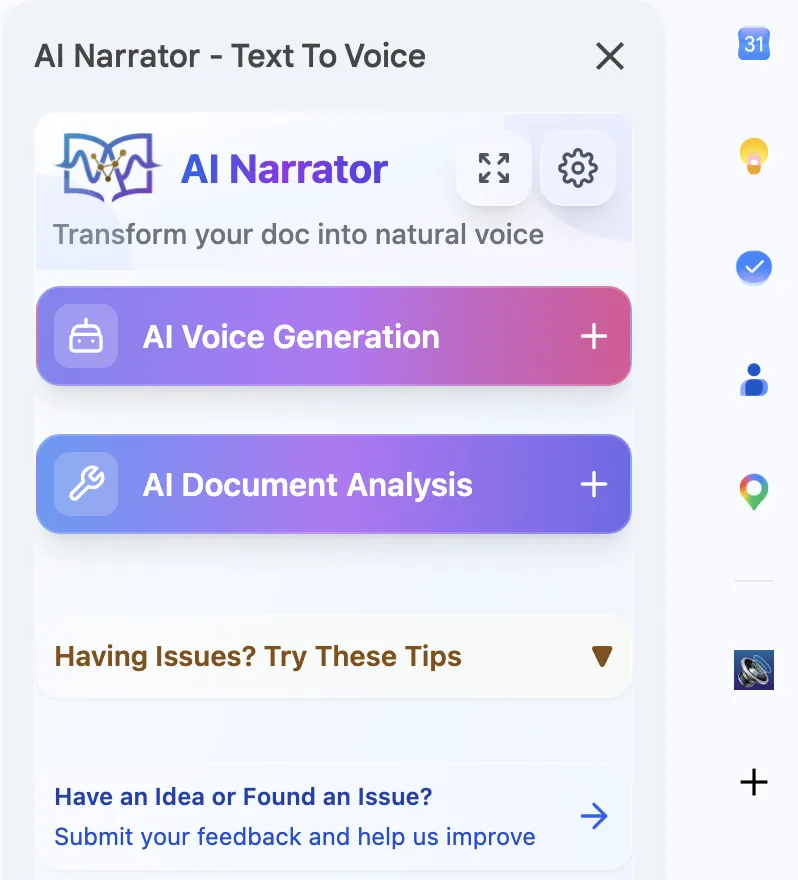
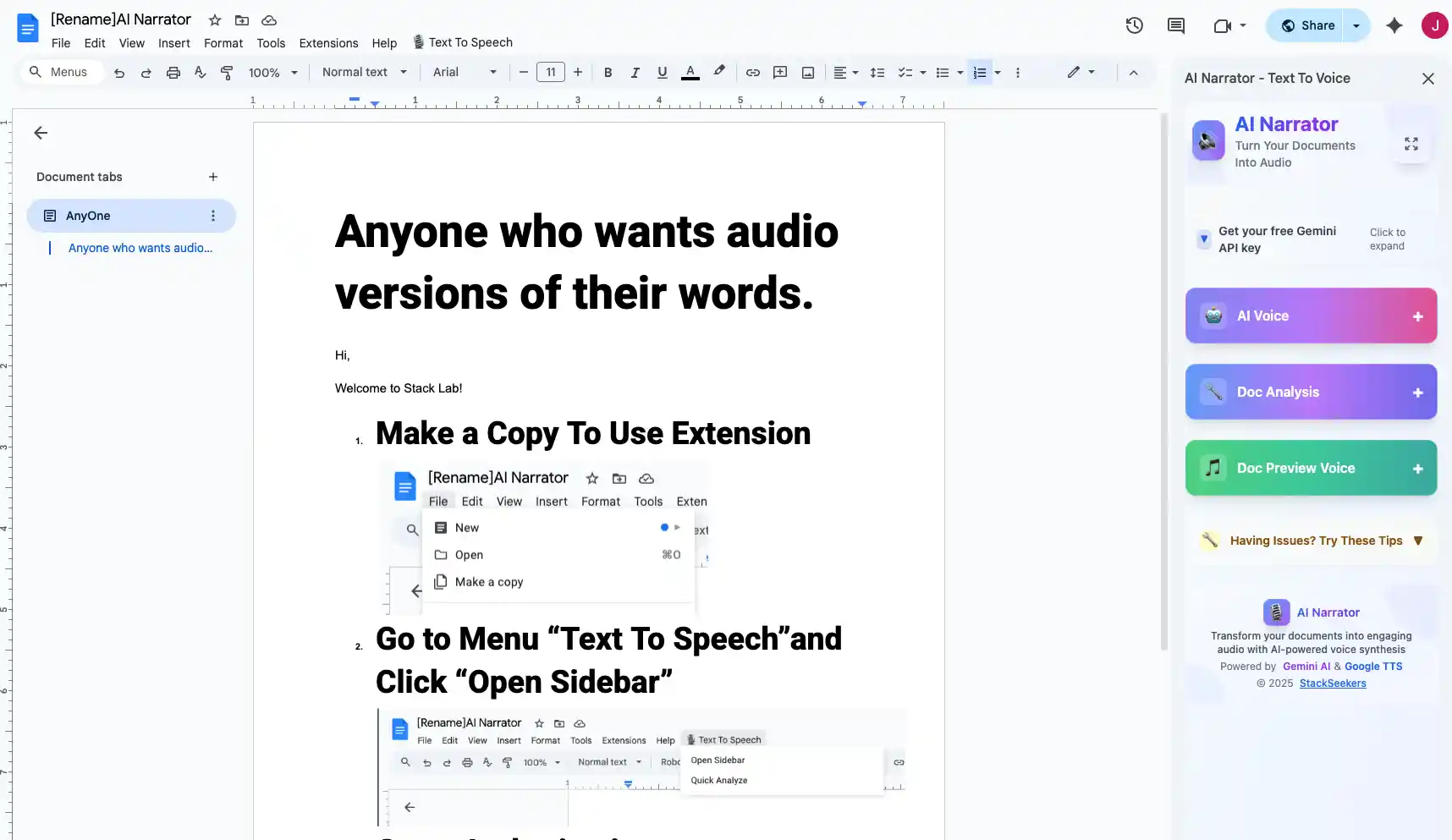
如果侧边栏没有自动出现,请点击 Chrome 工具栏中的 AI Narrator 图标,或在 Google 文档菜单的“扩展程序”下找到它。侧边栏会打开一个简洁直观的界面,显示语音选项、播放控制和设置。
第 4 步:选择您的语音
浏览 32 种可用的 AI 语音。您可以按语言、口音或风格进行筛选。点击任意语音旁边的预览按钮即可收听示例。热门选择包括 Emma(美式英语)、Sophie(英式英语)和 Lucas(澳式英语)。
第 5 步:选择文本或整个文档
高亮显示您想朗读的特定文本,或保持不选状态以让 AI Narrator 阅读整个文档。扩展程序能智能处理这两种模式,跳过页眉、页脚和格式元素。
第 6 步:生成并收听
点击“生成”按钮。AI Narrator 处理您的文本并在几秒钟内开始播放。使用播放控制进行暂停、跳过或调整速度。音频通过您的扬声器或耳机播放,具有自然的语调和节奏。
第 7 步:下载您的音频
点击下载按钮将您的叙述保存为 WAV 文件。该文件已准备好用于演示、播客、YouTube 视频或任何其他项目。您还可以直接将其分享给同事或学生。
将讲座笔记、学习指南和教科书章节转换为音频文件,您可以在通勤、锻炼或做家务时收听。研究表明,将阅读与收听结合可以提高高达 40% 的记忆力。准备期末考试的学生可以从 Google 文档笔记中生成音频,并在晨跑时收听。
您的耳朵能捕捉到眼睛错过的错误。蹩脚的措辞、遗漏的单词、重复的句子和拼写错误在您听它们大声读出来时都会变得显而易见。许多专业编辑在发布前使用文本转语音作为最后的校对步骤。AI Narrator 的自然语音使得这一过程即使对于长文档也非常舒适。
将博客文章、通讯和文章重新制作为播客剧集或 YouTube 旁白。AI Narrator 的 32 种语音让您可以匹配内容语调——商业内容的专业感、个人博客的亲切感、宣传材料的活力。下载 WAV 文件并导入您的编辑软件。
教师可以为工作表、阅读作业和学习材料创建音频版本。这对于有阅读障碍、视障或学习差异的学生尤其有价值。与机械的屏幕阅读器语音相比,AI Narrator 的自然语音减少了收听疲劳,使学生在长时间的收听过程中更容易保持专注。
在通勤或旅行期间收听报告、提案和会议纪要。一份需要 45 分钟阅读的 20 页报告可以在 2 倍速下在 20 分钟内听完。AI Narrator 的速度控制让您可以找到适合不同类型内容的完美节奏——复杂的财务报告更慢,直截了当的更新更快。
AI Narrator 支持 50 多种语言的母语般语音。西班牙语学生可以让他们的 Google 文档以卡斯蒂利亚西班牙语朗读。日语学习者可以听到自然的日语发音。这对于语言课程、翻译工作和国际交流非常宝贵。
对于有视障、阅读障碍或阅读困难的用户,AI Narrator 提供了传统屏幕阅读器的替代方案。自然的 AI 语音更易于长时间收听,简洁的界面不需要学习复杂的键盘快捷键。对于需要休息眼睛的重复性劳损用户也很有用。
学习
将笔记转化为音频,以便在通勤或锻炼时学习校对
通过耳朵捕捉静默阅读时错过的错误播客
将书面内容转换为音频以制作播客剧集YouTube 旁白
根据您的书面脚本生成视频配音
| 功能 | Chrome 内置 | 朗读扩展 | 屏幕阅读器 | AI 配音 |
|---|---|---|---|---|
| 语音质量 | 机器人感 | 尚可 | 机器人感 | 自然 AI |
| 语音数量 | 2-3 | 5-10 | 2-3 | 32 |
| 语言 | 系统语音 | 10-50 | 系统语音 | 50+ |
| 下载音频 | 否 | 有限 | 否 | Yes (WAV) |
| 语速控制 | Basic | 是 | 因情况而异 | 0.5x-2x |
| Google Docs 集成 | Browser overlay | Toolbar button | Full support | Native sidebar |
| 文本选择 | Full page | 是 | 是 | 是 |
| 最适合 | Quick checks | Casual listening | 无障碍 | Everything |
| Cost | 免费 | Free / Paid | 免费 | Free / Premium |
Chrome Read Aloud on Windows
Open Google Docs in Chrome. Right-click anywhere in the document and select "Read aloud." Chrome reads from your cursor position using the system's default voice. Adjust speed in Chrome Settings > Accessibility.
AI Narrator on Windows
Install AI Narrator from the Chrome Web Store. Open any Google Doc and the sidebar appears automatically. Choose from 32 voices, adjust speed, and click Generate. Download your audio as a WAV file.
NVDA Screen Reader on Windows
Download NVDA from nvaccess.org. Install and run it. Open Google Docs in Chrome and enable screen reader support under Tools > Accessibility. NVDA reads your document using keyboard shortcuts. Press NVDA + Down Arrow to start reading.
Chrome Read Aloud on Mac
Open Google Docs in Chrome. Right-click and select "Read aloud." For the best results, make sure you've enabled the Read Aloud feature in Chrome Settings > Accessibility first.
AI Narrator on Mac
Install AI Narrator from the Chrome Web Store. The extension works identically on Mac as on Windows. Open your Google Doc, select a voice from the 32 available options, and click Generate.
VoiceOver on Mac
Enable VoiceOver in System Settings > Accessibility > VoiceOver. Open Google Docs in Chrome or Safari. VoiceOver reads your document and provides navigation shortcuts. Press VO + A to read all, or VO + Right Arrow to move through elements.
ChromeVox on Chromebook
Press Ctrl + Alt + Z to enable ChromeVox. Open Google Docs and ChromeVox reads the page. Use the ChromeVox cursor (Search + Arrow keys) to navigate. Press Search + Right Arrow to move forward through text.
AI Narrator on Chromebook
Install AI Narrator from the Chrome Web Store. It works the same way as on any other platform. The sidebar opens in your Google Doc and you can choose from 32 voices, adjust speed, and download audio.
TalkBack Screen Reader
Enable TalkBack in Settings > Accessibility > TalkBack. Open the Google Docs app and navigate to your document. TalkBack reads the content as you swipe through it. Use two-finger gestures to scroll and double-tap to interact with elements.
Google TTS Engine
Install Google Text-to-Speech from the Play Store. Go to Settings > System > Languages & input > Text-to-speech output and select Google TTS as the engine. Some apps, including Google Docs, will use this engine when accessibility features are enabled.
AI Narrator on Mobile Browser
Open Google Docs in Chrome on your Android phone. Install AI Narrator and access it through the Chrome extension menu. While the mobile experience is not as seamless as desktop, AI Narrator still provides natural voice playback and audio downloads.
Speak Screen on iOS
Enable Speak Screen in Settings > Accessibility > Spoken Content. In the Google Docs app, swipe down from the top of the screen with two fingers. iOS reads the entire screen aloud. You can adjust speaking rate and voice in the Spoken Content settings.
VoiceOver on iOS
Enable VoiceOver in Settings > Accessibility > VoiceOver. Open Google Docs and use VoiceOver gestures to navigate your document. Swipe right to move forward through text, or use the rotor (two-finger旋转 gesture) to navigate by heading or paragraph.
AI Narrator via Chrome on iOS
Open Google Docs in Chrome on your iPhone or iPad. While the full AI Narrator experience is optimized for desktop, you can access basic TTS features through the Chrome browser on iOS. For the best mobile experience, use your desktop to generate audio files and transfer them to your device.
Check that your system volume is turned up and not muted. Make sure you're not using Bluetooth headphones that are connected to a different device. In Chrome, check that the Read Aloud feature is enabled in Settings > Accessibility. If using AI Narrator, ensure the playback volume slider in the sidebar isn't set to zero. Try playing audio from another website to confirm your speakers or headphones are working.
Chrome's Read Aloud sometimes struggles with Google Docs because the document is rendered as a complex canvas element rather than plain HTML. Try selecting all text (Ctrl + A) before right-clicking. If that doesn't work, try refreshing the page and trying again. Some Google Docs extensions conflict with Read Aloud — try disabling other extensions temporarily.
If AI Narrator doesn't appear in your Google Docs toolbar, check that it's enabled in Chrome's extension settings. Go to chrome://extensions and make sure AI Narrator is toggled on. Try refreshing your Google Doc. If the sidebar still doesn't appear, click the Extensions icon (puzzle piece) in Chrome's toolbar and look for AI Narrator in the list.
Some extensions require specific permissions to work with Google Docs. When you install AI Narrator, Chrome will ask for permission to "Read and change your data on docs.google.com." This is necessary for the extension to access your document content. If you denied this permission during installation, go to chrome://extensions, find AI Narrator, click "Details," and update the site permissions.
Text-to-speech features can be affected by Chrome updates, conflicting extensions, or cached data. If something stops working, try these steps: update Chrome to the latest version (chrome://settings/help), clear your browser cache, disable other extensions one by one to find conflicts, or try opening Google Docs in an incognito window. If the problem persists, uninstall and reinstall the AI Narrator extension.
Mobile browsers have more restricted access to TTS APIs. Chrome on Android doesn't support the same Read Aloud features as desktop Chrome. The Google Docs mobile app has limited TTS support compared to the web version. For the full experience on mobile, use a desktop browser to generate audio files, then transfer them to your phone for offline listening.
| 工具 | Free Plan | AI Voices | 语言 | Audio Download | 最适合 |
|---|---|---|---|---|---|
| AI 配音 | 是 | 32 natural AI | 50+ | WAV | Everything |
| Chrome Read Aloud | 是 | System TTS | 系统语音 | 否 | Quick checks |
| 朗读扩展 | 是 | Google TTS | 50+ | 否 | Casual listening |
| NaturalReader | Limited (20 min/day) | Premium AI | 20+ | MP3 (paid) | Professional use |
| Speechify | Limited (few min) | Premium AI | 30+ | MP3 (paid) | Web articles |
| ChromeVox | 是 | System TTS | 系统语音 | 否 | 无障碍 |
Yes, Google Docs can read to you, but not through a built-in button. You can use Chrome's Read Aloud feature (right-click > Read aloud), screen readers like ChromeVox or VoiceOver, or install a text-to-speech extension like AI Narrator for natural AI voices.
Google Docs doesn't have a native text-to-speech button, but it supports text-to-speech through Chrome's accessibility features, screen reader compatibility, and third-party Chrome extensions. The most popular option is AI Narrator, which adds a full TTS panel directly inside Google Docs.
There's no "Read Aloud" button inside Google Docs itself. To use Chrome's Read Aloud, right-click anywhere in your Google Doc and select "Read aloud" from the context menu. If you don't see this option, enable it in Chrome Settings > Accessibility.
Google Docs doesn't provide a built-in way to download audio. However, AI Narrator lets you export your narration as a WAV file. Other extensions like NaturalReader and Speechify offer MP3 downloads in their paid tiers.
AI Narrator offers 32 natural AI voices that sound human and engaging. It has more natural-sounding options than any other Google Docs TTS tool, including voices in 50+ languages. Speechify and NaturalReader also offer AI voices, but at higher prices and with more restrictions.
Yes, with some limitations. On Android, use TalkBack or Google's TTS engine. On iOS, use VoiceOver or Speak Screen. AI Narrator works through Chrome on mobile, though the experience is best on desktop. For the highest quality on mobile, generate audio on desktop and transfer the file.
Yes, AI Narrator has a free tier that lets you try all features. Premium plans unlock additional voices, unlimited conversions, and priority processing. You can start using AI Narrator for free with no credit card required.
AI Narrator is the best extension for Google Docs text-to-speech. It's the only extension designed specifically for Google Docs with a native sidebar, 32 AI voices, 50+ languages, and WAV audio downloads. Other extensions like Read Aloud work but lack the voice quality and Google Docs integration.
Chrome's built-in Read Aloud and screen readers work offline using your system's TTS engine. AI Narrator requires an internet connection for AI voice generation, but you can download audio files for offline listening. This makes it easy to create offline audio versions of your documents.
With Chrome's Read Aloud, highlight the text first, then right-click and select "Read aloud." AI Narrator automatically reads only the selected text when you highlight a section before clicking Generate. Screen readers like ChromeVox can read selected text using keyboard shortcuts.
Voice Typing (Tools > Voice typing) converts your spoken words into text — it's speech-to-text. Text-to-speech does the opposite: it reads your written text aloud. They serve completely different purposes. If you want Google Docs to read to you, you need text-to-speech, not Voice Typing.
Yes. Google Docs supports screen readers like ChromeVox, NVDA, VoiceOver, and TalkBack for accessibility. You can also enable screen reader support in Google Docs under Tools > Accessibility settings. For a more comfortable listening experience, AI Narrator's natural voices are easier on the ears during long sessions.