如何录制音频到 Google Docs:5 个可行的方法
想亲自听到这些声音吗?
立即免费试用我们的人工智能讲述人。无需注册。
主要内容:
• Google Docs 不能原生录制音频 —— 没有内置录音机。
• 您可以在手机、电脑或在线录制音频,然后从 Google Drive 进行链接。
• Google Slides 支持插入音频;Google Docs 不支持(截至 2025 年)。
• AI Narrator 让您能够将 Google Docs 文本转换为专业的 AI 配音 —— 无需麦克风。
• 最好的方法取决于您需要自己的声音还是 AI 生成的配音。
Google Docs 被设计为协作文本编辑器,而不是多媒体创作工具。Google 的做法是让 Docs 专注于文本,Slides 处理多媒体演示,Keep 处理快速语音笔记。这种职责分离意味着每个工具都能很好地完成其工作,但也意味着像 Google Docs 语音录制这样的功能没有原生存在。
这是一个让许多用户感到困惑的关键区别。Google Slides 原生支持音频文件 —— 您可以将来自 Google Drive 的 MP3 或 WAV 文件直接插入幻灯片中,它们会在演示过程中播放。Google Docs 不具备此功能。如果您在 Slides 中看到音频可以正常工作,并认为 Docs 具有相同的功能,那您并不孤单。这两个工具处理音频的方式截然不同。
| 功能 | Google 文档 | Google Slides |
|---|---|---|
| Record Audio | 否 | 否 |
| Insert Audio File | No (link only) | Yes (from Drive) |
| Play Audio | 否 | 是 |
| Audio from Google Drive | Link | Embed and play |
| Voice Recording | 否 | 否 |
第 1 步:打开手机的录音机
在 iPhone 上,打开“语音备忘录”应用程序(预装)。在 Android 上,打开“录音机”应用程序(大多数设备上预装,或者从 Play Store 下载 Google Recorder)。这两个应用程序都是免费的,可以立即使用。
第 2 步:录制音频
点击录制按钮,清晰地对着手机麦克风说话。您可以录制语音笔记、配音、反馈或任何音频内容。当您停止时,应用程序会自动保存您的录音。
第 3 步:上传到 Google Drive
在手机上打开 Google Drive 应用程序。点击“+”按钮,然后选择“上传”。导航到您录制的音频文件并上传。该文件将同步到您的 Google Drive,并可从任何设备访问。
第 4 步:链接到您的 Google Doc
在浏览器中打开您的 Google Doc。突出显示要添加音频链接的文本。转到“插入” > “链接”(或按 Ctrl + K)。粘贴您的音频文件的 Google Drive 链接。您的文档现在有一个可点击的音频链接。
专业提示: 上传到 Google Drive 后,右键点击音频文件并选择“获取链接”以复制可共享的 URL。确保链接权限设置为“任何拥有链接的人都可以查看”,以便您的协作者可以访问音频。
第 1 步:打开录音机
点击开始菜单并输入“录音机”。点击应用程序将其打开。如果您没有,请从 Microsoft Store 免费安装。该应用程序打开时界面很简单 —— 只有一个录制按钮和之前录音的列表。
第 2 步:连接麦克风
插入 USB 麦克风或使用笔记本电脑的内置麦克风。为了获得更好的质量,耳机麦克风或 USB 电容麦克风效果很好。Windows 会自动检测并使用连接的麦克风。
第 3 步:录制音频
点击麦克风图标开始录制。清晰且保持音量一致地说话。完成后点击停止按钮。录音会自动保存,并以时间戳作为文件名。
第 4 步:上传到 Google Drive
打开浏览器并转到 drive.google.com。将音频文件从您的录音文件夹(通常在“文档”中)拖放到 Google Drive 中。右键点击该文件,选择“获取链接”,然后复制 URL。将其粘贴到您的 Google Doc 中。
第 1 步:打开语音备忘录
打开 Spotlight 搜索 (Cmd + 空格键) 并输入“语音备忘录”。点击打开该应用程序。您会看到一个简洁的界面,左侧有一个大的录制按钮和之前录音的列表。
第 2 步:设置麦克风
“语音备忘录”默认使用 Mac 的内置麦克风。为了获得更好的质量,请连接外部 USB 麦克风或耳机。检查输入电平表,确保您的声音清晰录入且没有削波。
第 3 步:录制和编辑
点击红色录制按钮开始。完成后,点击停止。您可以通过点击“编辑”并拖动边缘来修剪录音。语音备忘录还可以让您替换录音的部分内容,而无需重新开始。
第 4 步:导出和上传
右键点击您的录音并选择“共享” > “存储到文件”以导出它,或者将其直接拖到桌面上。然后将文件上传到 Google Drive,并使用“插入” > “链接”在您的 Google Doc 中链接它。
第 1 步:打开在线录音机
在 Chrome 中导航到 vocaroo.com 或 online-voice-recorder.com。在系统提示时授予麦克风权限。录音机无需注册即可立即加载。
第 2 步:录制音频
点击录制按钮,对着麦克风说话。大多数在线录音机显示可视化波形,以便您可以看到音频电平。完成后点击停止。
第 3 步:下载和上传
点击“保存”或“下载”将 MP3 文件保存到您的电脑上。然后将其上传到 Google Drive,并将链接粘贴到您的 Google Doc 中。
Google Drive 是使 Google Doc 音频可访问的最可靠方法。当您将音频文件上传到 Drive 时,它会获得一个永久的 URL,任何拥有权限的人都可以访问它。与通过电子邮件发送附件或将其托管在第三方网站上不同,Drive 链接不会过期,并且可以在所有设备上使用。
第 1 步:上传您的音频文件
转到 drive.google.com。点击“+ 新建” > “文件上传”并选择您的音频文件。支持的格式包括 MP3、WAV、OGG 和 M4A。文件会上传并出现在您的 Drive 文件夹中。
第 2 步:设置共享权限
右键点击上传的文件并选择“共享”。在“常规访问”下,将“受限”更改为“任何拥有链接的人”。这确保您的协作者无需请求访问权限即可打开音频。
第 3 步:复制链接
点击共享对话框中的“复制链接”。URL 现在在您的剪贴板中。此链接直接指向 Google Drive 中的音频文件。
第 4 步:插入 Google Docs
打开您的 Google Doc。选择您想要音频链接的文本。按 Ctrl + K (或 Mac 上按 Cmd + K) 打开链接对话框。粘贴 Google Drive URL 并点击“应用”。您的文本现在是音频文件的可点击链接。
重要提示: Google Docs 不会嵌入或播放音频文件。链接会在新标签页或 Google Drive 预览播放器中打开音频。如果您需要在演示文稿中直接播放音频,请改用 Google Slides。
链接到 Google Drive 中的音频
插入存储在 Google Drive 中的音频文件的超链接。链接会在 Drive 的预览播放器中打开文件。添加二维码
生成一个链接到您的音频文件的二维码,并将二维码图像插入到您的文档中。读者可以用手机扫描它。嵌入 Google Slides 音频播放器
创建一个带有嵌入式音频的 Google Slide,然后从您的文档链接到该幻灯片。变通方法,但实用。使用第三方嵌入
一些工具(如 Anchor,现为 Spotify for Podcasters)允许您通过 HTML 嵌入音频播放器,但这需要将文档作为网页发布。
您不能将音频播放器直接嵌入 Google Doc 中。您不能让音频在有人打开文档时自动播放。您不能像在电子邮件中那样将音频文件附加到 Doc 中。这些限制是刻意为之的 —— Google Docs 是文本编辑器,不是多媒体容器。
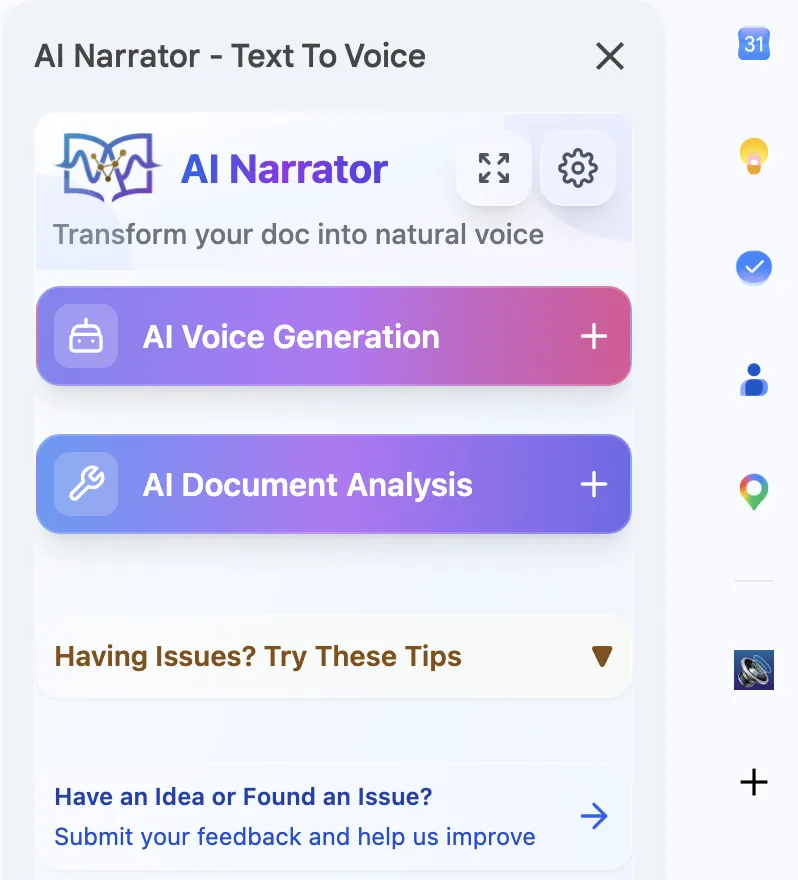
为什么要用 AI Narrator? 录制自己的声音需要时间,需要安静的环境,且质量不一致。 AI Narrator 每次都能为您提供 50 多种语言的录音室质量配音,且语气和节奏一致。无需麦克风。
32 种自然 AI 语音
Professional voices that sound human, not robotic — with natural intonation, pacing, and emphasis50 多种语言
Generate narration in English, Spanish, French, Hindi, Chinese, Arabic, and dozens more在 Google 文档内部工作
A native sidebar that lives inside your document editor — no tab-switching or copy-pasting下载音频文件
Export your narration as WAV files for podcasts, presentations, eLearning, or offline listening
AI 文档分析
智能处理,尊重标题、段落和文档结构速度控制
Adjust playback speed from 0.5x to 2x to match your preferred paceSelected Text or Full Document
Read specific paragraphs or process the entire document with one click免费试用
Try AI Narrator for free with no credit card required
Step 1: Install AI Narrator
Go to the Chrome Web Store and search for "AI Narrator." Click "Add to Chrome" and confirm the installation. The extension adds an icon to your Chrome toolbar and integrates directly with Google Docs.
第 2 步:打开您的 Google 文档
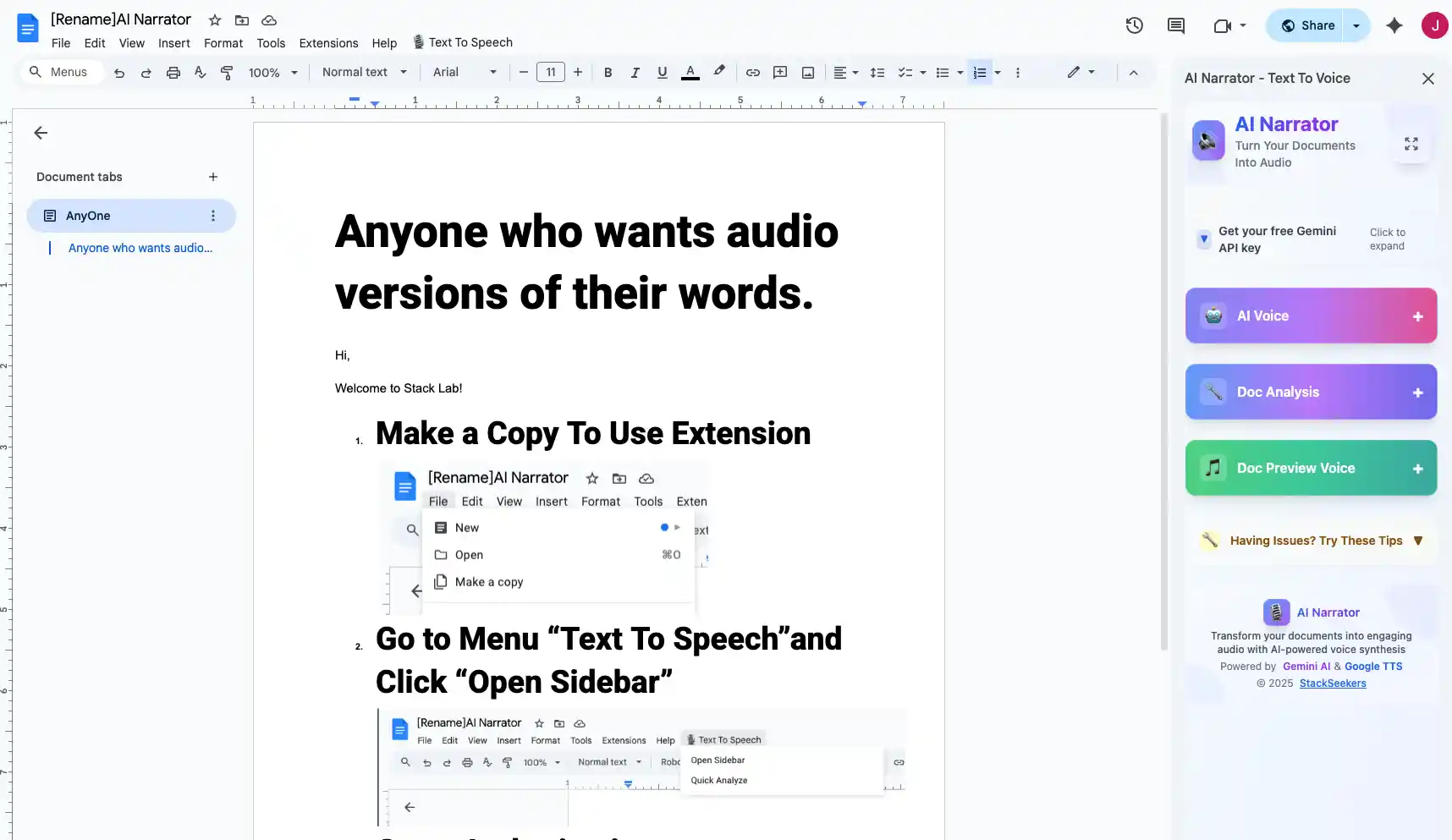
Navigate to docs.google.com and open the document you want narrated. The AI Narrator sidebar appears on the right side of your editor automatically. If it doesn't appear, click the AI Narrator icon in your toolbar.
Step 3: Choose a Voice
Browse through the 32 available AI voices. Filter by language, accent, or style. Click the preview button to hear a sample of each voice. Popular choices include Emma (American English), Sophie (British English), and Lucas (Australian English).
Step 4: Generate Narration
Highlight the text you want narrated, or leave nothing selected to process the entire document. Click "Generate." AI Narrator processes your text and begins playback within seconds, with natural intonation and pacing.
Step 5: Download Your Audio
Click the download button to save your narration as a WAV file. The file is ready to use in presentations, podcasts, YouTube videos, eLearning modules, or any other project. Upload it to Google Drive and link it in your Doc if needed.
Turn written show notes, scripts, or blog posts into podcast episodes. AI Narrator's natural voices produce audio that's indistinguishable from professional narration. Record a 30-minute episode in under 5 minutes.
Convert manuscripts, stories, or educational content into audiobooks. Choose a voice that matches your genre — warm and expressive for fiction, clear and authoritative for non-fiction. AI Narrator handles long-form content with consistent quality throughout.
Create narrated training modules for employees or students. Instead of reading slides, let AI Narrator deliver the content with professional pacing. Upload the audio to your LMS or share via Google Drive.
Generate voiceovers for explainer videos, tutorials, or listicles. AI Narrator's WAV files import directly into video editors like Premiere Pro, DaVinci Resolve, or iMovie. Match the voice to your channel's style.
Produce narrated courses, quizzes, and study materials. AI Narrator's 50+ language support means you can create multilingual eLearning content without hiring voice actors for each language.
Add narration to Google Slides presentations that play automatically. Record the audio from AI Narrator, upload it to Google Drive, and embed it in your slides. Your presentation now plays itself.
Provide audio versions of documents for users with visual impairments, dyslexia, or reading difficulties. AI Narrator's natural voices are easier to listen to for extended periods than robotic screen reader voices.
播客
Turn scripts and show notes into episodes with natural AI narrationAudiobooks
Convert manuscripts into professional audiobook narrationeLearning
Create multilingual narrated courses and study materialsYouTube
Generate voiceovers for explainer videos and tutorials
| Factor | Record Your Voice | AI 配音 |
|---|---|---|
| Time to Produce | 10-30 minutes | Under 1 minute |
| Audio Quality | Depends on mic and environment | Consistent studio quality |
| Editing Required | Yes — trim, normalize, remove noise | None — generated clean |
| 语言支持 | Your language only | 50+ languages |
| Cost | Free (your time) or studio rental | Free tier available |
| Background Noise | Risk of noise, echo, interruptions | Zero — digitally generated |
| Scalability | One recording at a time | Unlimited, parallel generation |
| Ease of Use | Requires quiet space and decent mic | Click Generate — done |
Recording your own voice makes sense when authenticity matters. Personal touch in a podcast, emotion in a story, or your unique speaking style in a presentation — these are things AI can't fully replicate. If you have a good microphone and a quiet environment, recording yourself gives your audio a personal, human quality that listeners appreciate.
AI Narrator is the better choice when speed, consistency, or scale matters. Need to narrate 20 training documents this week? AI Narrator handles it in minutes. Need the same script in English, Spanish, and French? Three clicks. Need studio-quality audio without buying a microphone? AI Narrator delivers every time. For a broader comparison of available tools, see our best TTS for Google Docs roundup.
No, Google Docs does not have a built-in voice recorder. There is no way to record audio directly inside a Google Doc. However, you can record audio using your phone, computer, or an online recorder, then upload it to Google Drive and link it in your document.
You cannot embed or play an MP3 directly inside a Google Doc. You can insert a hyperlink to an MP3 file stored in Google Drive — when clicked, the audio opens in Drive's preview player in a new tab. If you need native audio embedding, use Google Slides instead.
Not directly. Google Docs doesn't support audio attachments or voice notes. The workaround is to record a voice note using your phone or computer, upload it to Google Drive, and paste the link into your document. Alternatively, use Google Keep for quick voice notes and link them from your Doc.
Students cannot record audio directly in Google Docs. However, they can record audio on their phone or computer, upload it to Google Drive, and paste the link into a Google Doc. Teachers can also use Google Assignments or Google Classroom, which support file attachments including audio.
The easiest method is to record audio on your phone using the built-in Voice Memos (iPhone) or Recorder (Android) app, upload the file to Google Drive, and paste the link into your Google Doc. The entire process takes about 2 minutes.
Yes. AI Narrator is a Chrome extension that reads your Google Docs text aloud using 32 natural AI voices. You can listen to the narration directly or download it as a WAV file. It's the fastest way to create professional narration from written content.
Yes, AI Narrator has a free tier that lets you try all features. Premium plans unlock additional voices, unlimited conversions, and priority processing. You can start using AI Narrator for free with no credit card required.
Google Docs on mobile does not support audio recording. You can record audio using your phone's built-in recorder app, then upload it to Google Drive and link it from the Google Docs mobile app. For the best experience, use a desktop browser.
Google Drive supports MP3, WAV, OGG, FLAC, and M4A audio files. All of these can be uploaded and linked from Google Docs. MP3 is the most universally compatible format for sharing.
No. Google Docs does not support auto-playing audio or any form of audio embedding. Audio links open in a new tab. If you need auto-playing audio, consider publishing your document as a web page with an embedded audio player, or use Google Slides for presentations.