How to Record Audio in Google Docs: 5 Workarounds That Work
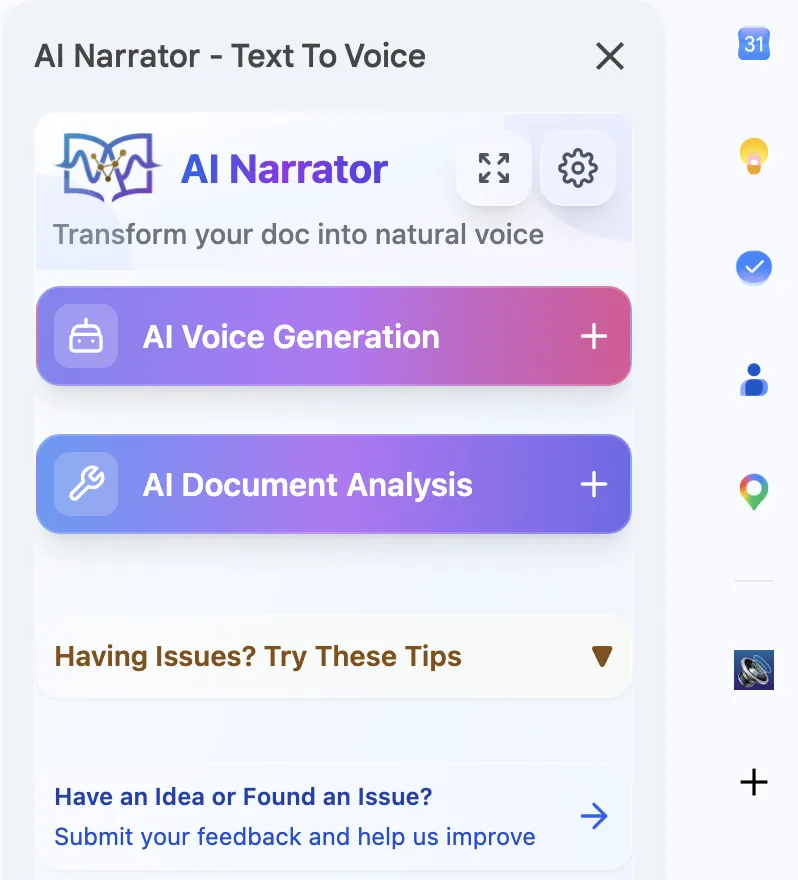
Bu sesleri kendiniz duymak ister misiniz?
AI Narrator'ı hemen ücretsiz deneyin. Kayıt gerekmez.
Key Takeaways:
• Google Docs cannot record audio natively — there is no built-in voice recorder.
• You can record audio on your phone, computer, or online, then link it from Google Drive.
• Google Slides supports audio insertion; Google Docs does not (as of 2025).
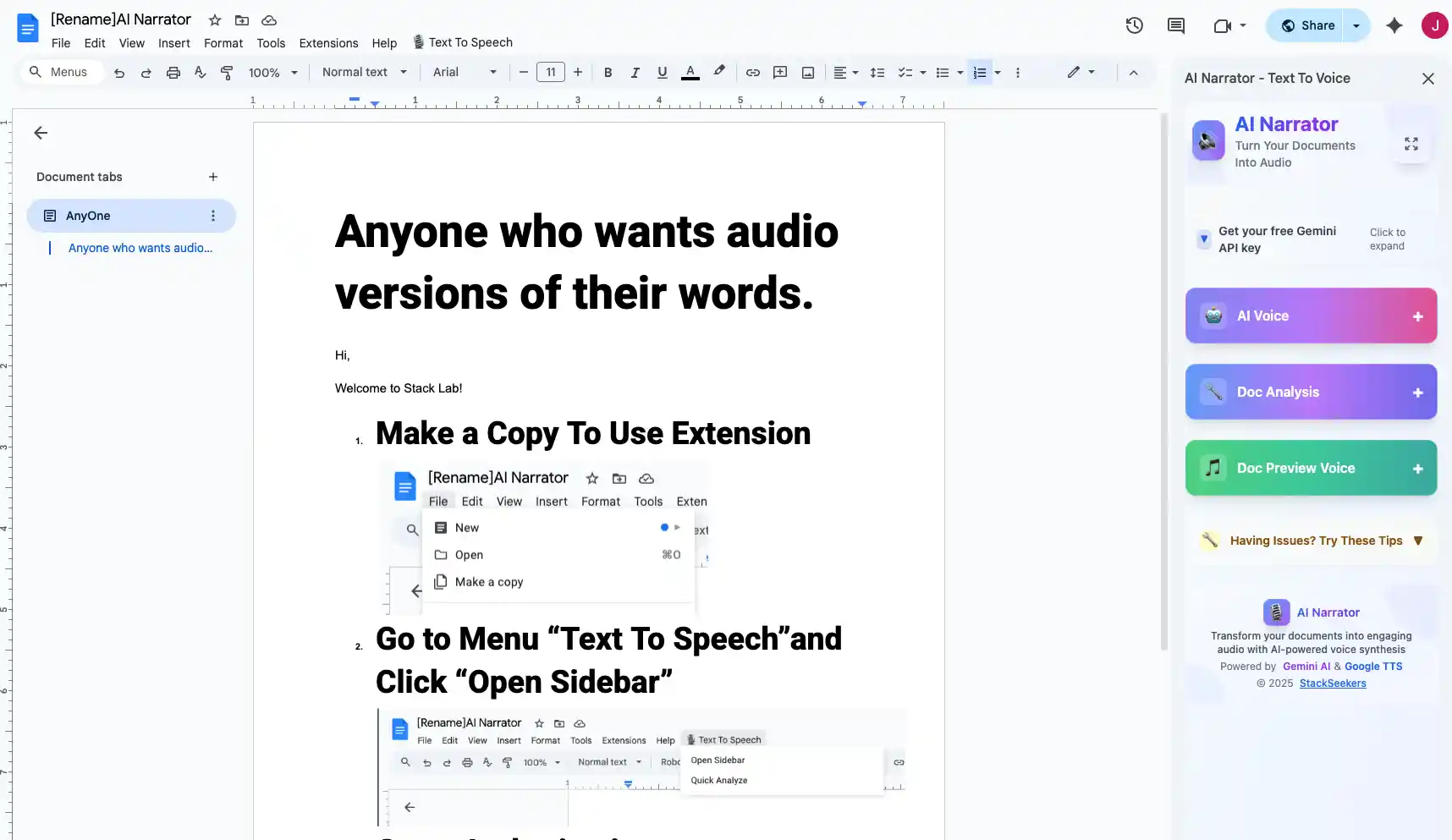
• AI Narrator lets you convert Google Docs text into professional AI narration — no microphone needed.
• The best method depends on whether you need your own voice or AI-generated narration.
Google Docs is designed as a collaborative text editor, not a multimedia authoring tool. Google's approach has been to keep Docs focused on text, with Slides handling multimedia presentations and Keep handling quick voice notes. This separation of concerns means each tool does its job well, but it also means features like voice recording google docs don't exist natively.
This is a key distinction that confuses many users. Google Slides supports audio files natively — you can insert MP3 or WAV files from Google Drive directly into a slide, and they play during your presentation. Google Docs does not have this capability. If you've seen audio work in Slides and assumed Docs has the same feature, you're not alone. The two tools handle audio very differently.
| Feature | Google Docs | Google Slides |
|---|---|---|
| Record Audio | No | No |
| Insert Audio File | No (link only) | Yes (from Drive) |
| Play Audio | No | Yes |
| Audio from Google Drive | Link | Embed and play |
| Voice Recording | No | No |
Step 1: Open Your Phone's Voice Recorder
On iPhone, open the Voice Memos app (pre-installed). On Android, open the Recorder app (pre-installed on most devices, or download Google Recorder from the Play Store). Both apps are free and ready to use immediately.
Step 2: Record Your Audio
Tap the record button and speak clearly into your phone's microphone. You can record voice notes, narration, feedback, or any audio content. The apps save your recording automatically when you stop.
Step 3: Upload to Google Drive
Open the Google Drive app on your phone. Tap the "+" button and select "Upload." Navigate to your recorded audio file and upload it. The file will sync to your Google Drive and be accessible from any device.
Step 4: Link to Your Google Doc
Open your Google Doc in a browser. Highlight the text where you want to add the audio link. Go to Insert > Link (or press Ctrl + K). Paste the Google Drive link to your audio file. Your document now has a clickable link to the audio.
Pro Tip: After uploading to Google Drive, right-click the audio file and select "Get link" to copy a shareable URL. Make sure the link permissions are set to "Anyone with the link can view" so your collaborators can access the audio.
Step 1: Open Voice Recorder
Click the Start menu and type "Voice Recorder." Click the app to open it. If you don't have it, install it free from the Microsoft Store. The app opens with a simple interface — just a record button and a list of previous recordings.
Step 2: Connect Your Microphone
Plug in a USB microphone or use your laptop's built-in mic. For better quality, a headset microphone or USB condenser mic works well. Windows automatically detects and uses the connected microphone.
Step 3: Record Your Audio
Click the microphone icon to start recording. Speak clearly and at a consistent volume. Click the stop button when finished. The recording saves automatically with a timestamp as the filename.
Step 4: Upload to Google Drive
Open your browser and go to drive.google.com. Drag and drop the audio file from your Recordings folder (usually in Documents) into Google Drive. Right-click the file, select "Get link," and copy the URL. Paste it into your Google Doc.
Step 1: Open Voice Memos
Open Spotlight search (Cmd + Space) and type "Voice Memos." Click to open the app. You'll see a clean interface with a large record button and a list of previous recordings on the left.
Step 2: Set Up Your Microphone
Voice Memos uses your Mac's built-in microphone by default. For better quality, connect an external USB microphone or headset. Check the input level meter to make sure your voice is registering clearly without clipping.
Step 3: Record and Edit
Click the red record button to start. When done, click stop. You can trim the recording by clicking "Edit" and dragging the edges. Voice Memos also lets you replace sections of a recording without starting over.
Step 4: Export and Upload
Right-click your recording and select "Share" > "Save to Files" to export it, or drag it directly to your desktop. Then upload the file to Google Drive and link it in your Google Doc using Insert > Link.
Step 1: Open an Online Recorder
Navigate to vocaroo.com or online-voice-recorder.com in Chrome. Grant microphone access when prompted. The recorder loads instantly with no signup required.
Step 2: Record Your Audio
Click the record button and speak into your microphone. Most online recorders show a visual waveform so you can see your audio levels. Click stop when finished.
Step 3: Download and Upload
Click "Save" or "Download" to save the MP3 file to your computer. Then upload it to Google Drive and paste the link into your Google Doc.
Google Drive is the most reliable way to make audio accessible from a Google Doc. When you upload an audio file to Drive, it gets a permanent URL that anyone with permission can access. Unlike attaching files to emails or hosting them on third-party sites, Drive links don't expire and work across all devices.
Step 1: Upload Your Audio File
Go to drive.google.com. Click "+ New" > "File upload" and select your audio file. Supported formats include MP3, WAV, OGG, and M4A. The file uploads and appears in your Drive folder.
Step 2: Set Sharing Permissions
Right-click the uploaded file and select "Share." Under "General access," change from "Restricted" to "Anyone with the link." This ensures your collaborators can open the audio without requesting access.
Step 3: Copy the Link
Click "Copy link" in the sharing dialog. The URL is now on your clipboard. This link points directly to the audio file in Google Drive.
Step 4: Insert into Google Docs
Open your Google Doc. Select the text where you want the audio link. Press Ctrl + K (or Cmd + K on Mac) to open the link dialog. Paste the Google Drive URL and click "Apply." Your text is now a clickable link to the audio file.
Important: Google Docs does not embed or play audio files. The link opens the audio in a new tab or the Google Drive preview player. If you need audio to play directly inside a presentation, use Google Slides instead.
Link to Audio in Google Drive
Insert a hyperlink to an audio file stored in Google Drive. The link opens the file in Drive's preview player.Add a QR Code
Generate a QR code that links to your audio file and insert the QR code image into your doc. Readers can scan it with their phone.Embed a Google Slides Audio Player
Create a Google Slide with the audio embedded, then link to that slide from your Doc. Workaround, but functional.Use a Third-Party Embed
Some tools like Anchor (now Spotify for Podcasters) let you embed audio players via HTML, but this requires publishing the Doc as a web page.
You cannot embed an audio player directly inside a Google Doc. You cannot have audio that auto-plays when someone opens the document. You cannot attach an audio file to a Doc the way you'd attach a file to an email. These limitations are by design — Google Docs is a text editor, not a multimedia container.
Why AI Narrator? Recording your own voice takes time, requires a quiet environment, and produces inconsistent quality. AI Narrator gives you studio-quality narration in 50+ languages, with consistent tone and pacing, every single time. No microphone needed.
32 Natural AI Voices
Professional voices that sound human, not robotic — with natural intonation, pacing, and emphasis50+ Languages
Generate narration in English, Spanish, French, Hindi, Chinese, Arabic, and dozens moreWorks Inside Google Docs
A native sidebar that lives inside your document editor — no tab-switching or copy-pastingDownload Audio Files
Export your narration as WAV files for podcasts, presentations, eLearning, or offline listening
AI Document Analysis
Intelligent processing that respects headings, paragraphs, and document structureSpeed Control
Adjust playback speed from 0.5x to 2x to match your preferred paceSelected Text or Full Document
Read specific paragraphs or process the entire document with one clickFree to Start
Try AI Narrator for free with no credit card required
Step 1: Install AI Narrator
Go to the Chrome Web Store and search for "AI Narrator." Click "Add to Chrome" and confirm the installation. The extension adds an icon to your Chrome toolbar and integrates directly with Google Docs.
Step 2: Open Your Google Document
Navigate to docs.google.com and open the document you want narrated. The AI Narrator sidebar appears on the right side of your editor automatically. If it doesn't appear, click the AI Narrator icon in your toolbar.
Step 3: Choose a Voice
Browse through the 32 available AI voices. Filter by language, accent, or style. Click the preview button to hear a sample of each voice. Popular choices include Emma (American English), Sophie (British English), and Lucas (Australian English).
Step 4: Generate Narration
Highlight the text you want narrated, or leave nothing selected to process the entire document. Click "Generate." AI Narrator processes your text and begins playback within seconds, with natural intonation and pacing.
Step 5: Download Your Audio
Click the download button to save your narration as a WAV file. The file is ready to use in presentations, podcasts, YouTube videos, eLearning modules, or any other project. Upload it to Google Drive and link it in your Doc if needed.
Turn written show notes, scripts, or blog posts into podcast episodes. AI Narrator's natural voices produce audio that's indistinguishable from professional narration. Record a 30-minute episode in under 5 minutes.
Convert manuscripts, stories, or educational content into audiobooks. Choose a voice that matches your genre — warm and expressive for fiction, clear and authoritative for non-fiction. AI Narrator handles long-form content with consistent quality throughout.
Create narrated training modules for employees or students. Instead of reading slides, let AI Narrator deliver the content with professional pacing. Upload the audio to your LMS or share via Google Drive.
Generate voiceovers for explainer videos, tutorials, or listicles. AI Narrator's WAV files import directly into video editors like Premiere Pro, DaVinci Resolve, or iMovie. Match the voice to your channel's style.
Produce narrated courses, quizzes, and study materials. AI Narrator's 50+ language support means you can create multilingual eLearning content without hiring voice actors for each language.
Add narration to Google Slides presentations that play automatically. Record the audio from AI Narrator, upload it to Google Drive, and embed it in your slides. Your presentation now plays itself.
Provide audio versions of documents for users with visual impairments, dyslexia, or reading difficulties. AI Narrator's natural voices are easier to listen to for extended periods than robotic screen reader voices.
Podcasts
Turn scripts and show notes into episodes with natural AI narrationAudiobooks
Convert manuscripts into professional audiobook narrationeLearning
Create multilingual narrated courses and study materialsYouTube
Generate voiceovers for explainer videos and tutorials
| Factor | Record Your Voice | AI Narrator |
|---|---|---|
| Time to Produce | 10-30 minutes | Under 1 minute |
| Audio Quality | Depends on mic and environment | Consistent studio quality |
| Editing Required | Yes — trim, normalize, remove noise | None — generated clean |
| Language Support | Your language only | 50+ languages |
| Cost | Free (your time) or studio rental | Free tier available |
| Background Noise | Risk of noise, echo, interruptions | Zero — digitally generated |
| Scalability | One recording at a time | Unlimited, parallel generation |
| Ease of Use | Requires quiet space and decent mic | Click Generate — done |
Recording your own voice makes sense when authenticity matters. Personal touch in a podcast, emotion in a story, or your unique speaking style in a presentation — these are things AI can't fully replicate. If you have a good microphone and a quiet environment, recording yourself gives your audio a personal, human quality that listeners appreciate.
AI Narrator is the better choice when speed, consistency, or scale matters. Need to narrate 20 training documents this week? AI Narrator handles it in minutes. Need the same script in English, Spanish, and French? Three clicks. Need studio-quality audio without buying a microphone? AI Narrator delivers every time. For a broader comparison of available tools, see our best TTS for Google Docs roundup.
No, Google Docs does not have a built-in voice recorder. There is no way to record audio directly inside a Google Doc. However, you can record audio using your phone, computer, or an online recorder, then upload it to Google Drive and link it in your document.
You cannot embed or play an MP3 directly inside a Google Doc. You can insert a hyperlink to an MP3 file stored in Google Drive — when clicked, the audio opens in Drive's preview player in a new tab. If you need native audio embedding, use Google Slides instead.
Not directly. Google Docs doesn't support audio attachments or voice notes. The workaround is to record a voice note using your phone or computer, upload it to Google Drive, and paste the link into your document. Alternatively, use Google Keep for quick voice notes and link them from your Doc.
Students cannot record audio directly in Google Docs. However, they can record audio on their phone or computer, upload it to Google Drive, and paste the link into a Google Doc. Teachers can also use Google Assignments or Google Classroom, which support file attachments including audio.
The easiest method is to record audio on your phone using the built-in Voice Memos (iPhone) or Recorder (Android) app, upload the file to Google Drive, and paste the link into your Google Doc. The entire process takes about 2 minutes.
Yes. AI Narrator is a Chrome extension that reads your Google Docs text aloud using 32 natural AI voices. You can listen to the narration directly or download it as a WAV file. It's the fastest way to create professional narration from written content.
Yes, AI Narrator has a free tier that lets you try all features. Premium plans unlock additional voices, unlimited conversions, and priority processing. You can start using AI Narrator for free with no credit card required.
Google Docs on mobile does not support audio recording. You can record audio using your phone's built-in recorder app, then upload it to Google Drive and link it from the Google Docs mobile app. For the best experience, use a desktop browser.
Google Drive supports MP3, WAV, OGG, FLAC, and M4A audio files. All of these can be uploaded and linked from Google Docs. MP3 is the most universally compatible format for sharing.
No. Google Docs does not support auto-playing audio or any form of audio embedding. Audio links open in a new tab. If you need auto-playing audio, consider publishing your document as a web page with an embedded audio player, or use Google Slides for presentations.
AI Narrator'ı Denemeye Hazır mısınız?
Google Docs'unuzu bugün profesyonel sese dönüştürmeye başlayın. Sonsuza kadar ücretsiz!
Docs'a Ekle — Ücretsiz