Google Docs Audio Reader: Listen to Your Documents Effortlessly
Turn Google Docs into an audio reader with text-to-speech. Learn how to listen to your documents with natural AI voices for proofreading, accessibility, and multitasking.
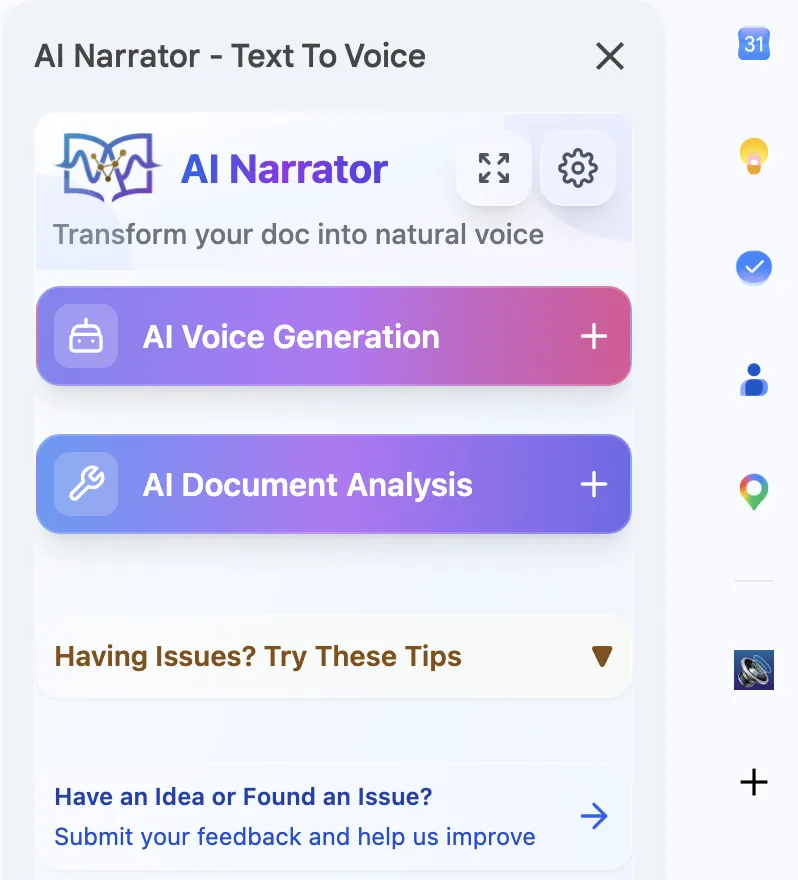
Quick Answer: A Google Docs audio reader converts your documents into spoken audio. The best option is AI Narrator, a Chrome extension that adds 32 natural AI voices to Google Docs, supports 15+ languages, and lets you download WAV files for offline listening.
An audio reader converts written text into spoken words. For Google Docs, this means you can listen to your documents instead of reading them on screen. This is useful for proofreading, multitasking, reducing eye strain, and supporting accessibility needs.
Natural Listening
AI voices that sound human and engagingHands-Free Operation
Listen while commuting, cooking, or exercisingReduced Eye Strain
Give your eyes a break with audio playbackMulti-Language Audio
Listen to documents in 15+ languages
Step 1: Set Up AI Narrator
Install the AI Narrator extension from the Chrome Web Store. It adds audio reader functionality directly to Google Docs.
Step 2: Open Your Document
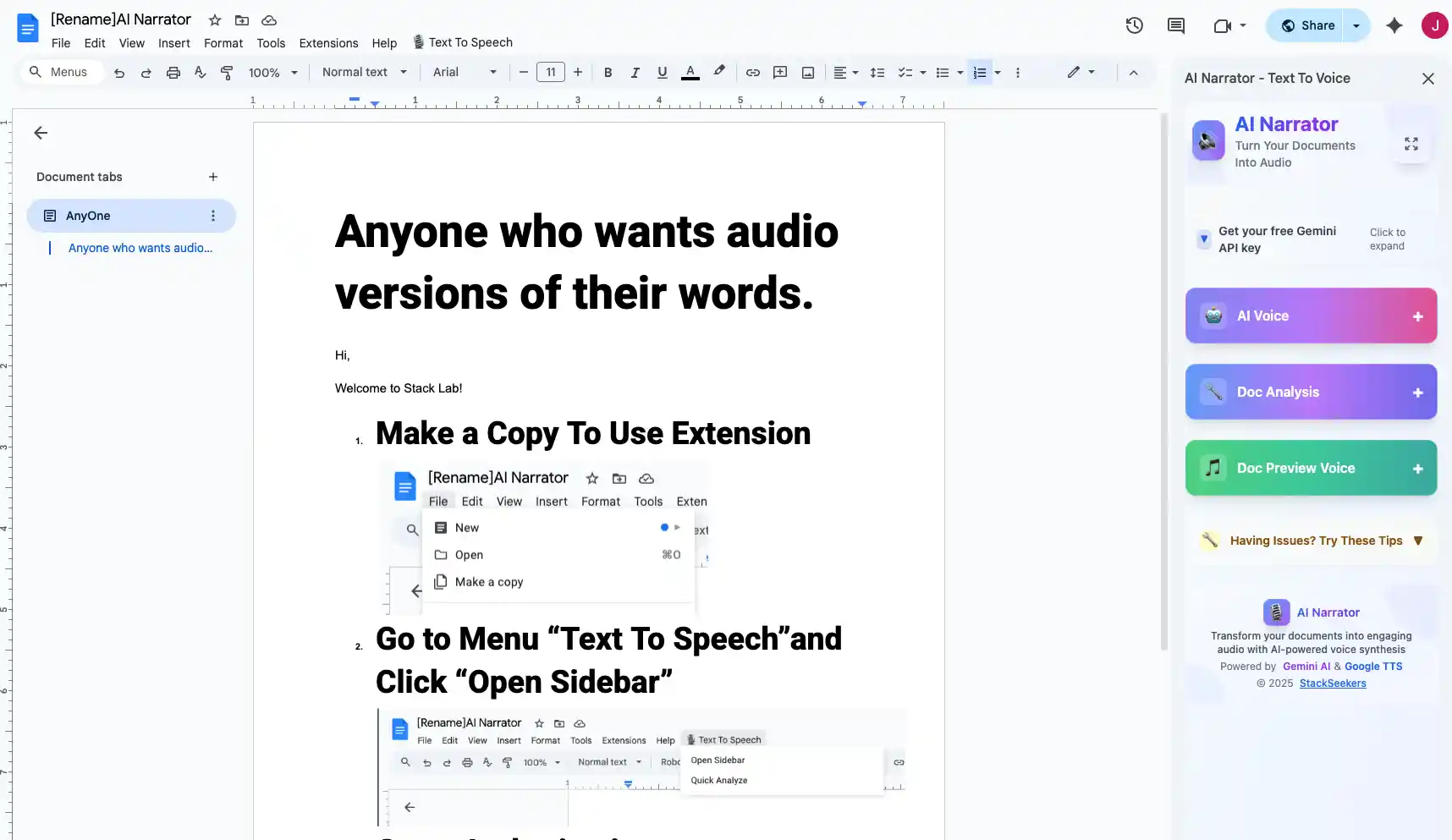
Navigate to any Google Doc. The AI Narrator panel opens on the right side of your editor.
Step 3: Choose a Voice
Browse through 32 available voices. You can preview each one to find the perfect match for your document.
Step 4: Start Listening
Click play to start the audio reader. Use pause, skip, and speed controls to customize your listening experience.
Audio readers improve comprehension, especially for complex documents. They help you process information faster when combined with visual reading. They're essential for users with dyslexia or visual impairments. And they make it possible to consume documents during activities that prevent screen reading. For proofreading, listening to your document is one of the most effective techniques.
| Use Case | Benefit | AI Narrator Feature |
|---|---|---|
| Proofreading | Catch more errors by ear | Natural voice playback |
| Studying | Retain information better | Speed control |
| Content Review | Review documents hands-free | Mobile download |
| Accessibility | Support for visual impairments | Screen reader compatible |
| Language Learning | Listen to native pronunciation | 15+ languages |
Use headphones for focused listening. Adjust playback speed to match your comprehension level — slower for complex topics, faster for familiar content. Choose a voice that matches the document's tone. For team collaboration, check our multilingual TTS features for multi-language documents.
Want to hear these voices yourself?
Try our AI Narrator for free right now. No sign-up required.
Play Voice SamplesReady to Try AI Narrator?
Start converting your Google Docs into professional audio today. Free forever!
Download Free Now