How to Convert Google Docs to Audio Files
Learn multiple methods to convert your Google Docs into audio files. From AI Narrator to built-in tools, find the best approach for your needs.
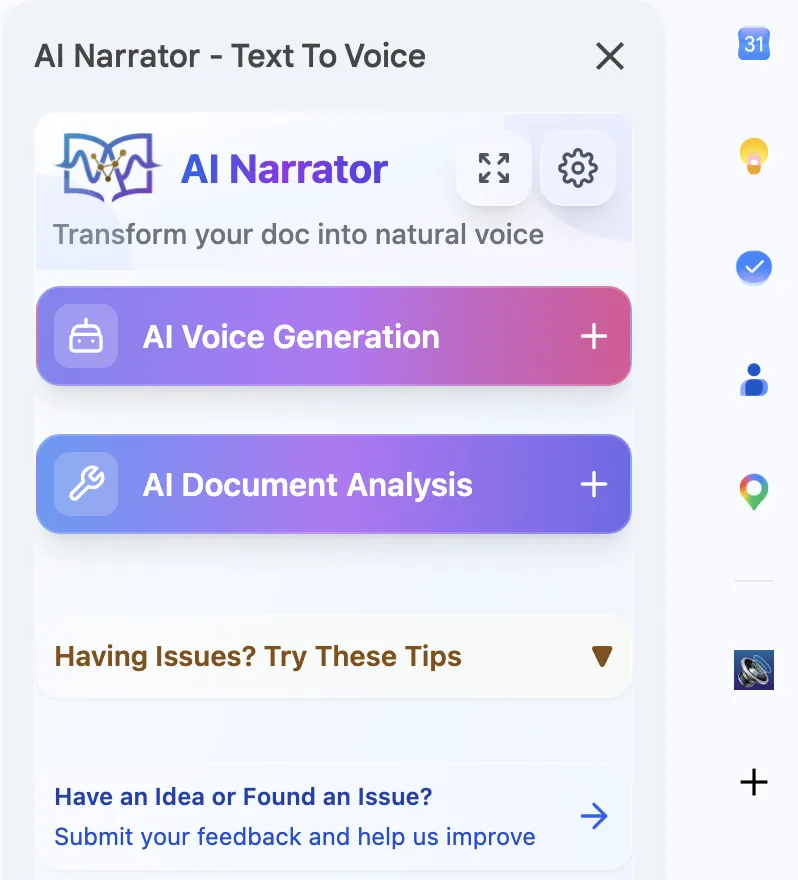
Quick Answer: To convert a Google Doc to audio, install the AI Narrator Chrome extension, open your document, and click Generate. You'll get a high-quality WAV file in seconds with 32 AI voices and 15+ languages — no watermarks or limits.
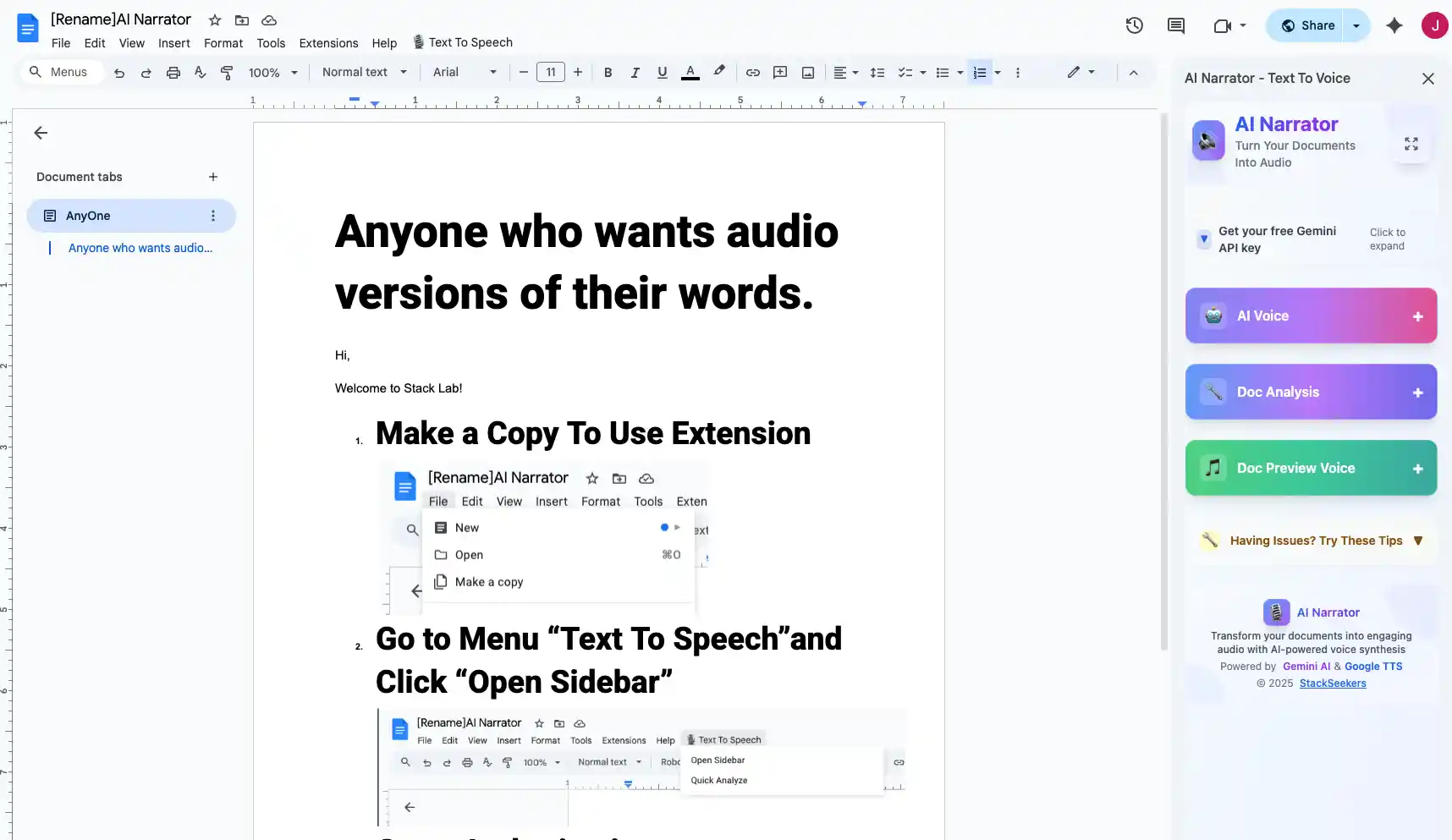
AI Narrator is the most powerful tool for converting Google Docs to audio. It integrates directly with Google Docs and uses advanced AI voices to produce studio-quality audio in seconds. You can convert entire documents or selected sections.
One-Click Conversion
Convert any document to audio with a single click32 AI Voices
Choose from professional voices in multiple languagesWAV Export
Download high-quality WAV files for any useMulti-Language
Support for over 15 languages and regional accents
Step 1: Install AI Narrator
Add the AI Narrator extension from the Chrome Web Store. It integrates directly into your Google Docs interface.
Step 2: Open Your Document
Open the Google Doc you want to convert. Click the AI Narrator icon in the toolbar to open the settings panel.
Step 3: Choose Voice and Settings
Select from 32 available voices. Adjust speed and pitch to match your preferred listening style. Preview the voice before generating.
Step 4: Generate and Download
Click "Generate" to convert the text. Once processing completes, download your audio as a WAV file, ready to use anywhere.
Google Docs has basic text-to-speech through the Chrome browser's accessibility features. You can select text, right-click, and use "Read aloud." However, this method doesn't allow you to download audio files — it's playback only. For downloadable audio, a dedicated TTS extension is required.
Several online tools claim to convert Google Docs to audio, but most require you to copy-paste text into their platform, losing formatting and structure. They also often have voice limits, watermarks, or usage caps.
| Method | Quality | Download | Voice Options |
|---|---|---|---|
| AI Narrator | High | WAV | 32 |
| Chrome TTS | Low | No | 2-3 |
| Online Converters | Medium | MP3/WAV | 5-10 |
| Screen Readers | Low | No | 2-3 |
| AI Narrator Premium | High | WAV | 32 + custom |
To get the highest quality audio, follow these tips: format your document with clear headings and paragraphs, choose a voice that matches your content type, and always preview before generating the full file. For non-English documents, use our multilingual TTS guide to select the right voice.
Want to hear these voices yourself?
Try our AI Narrator for free right now. No sign-up required.
Play Voice SamplesReady to Try AI Narrator?
Start converting your Google Docs into professional audio today. Free forever!
Download Free Now