How to Record Audio in Google Docs: 5 Workarounds That Work
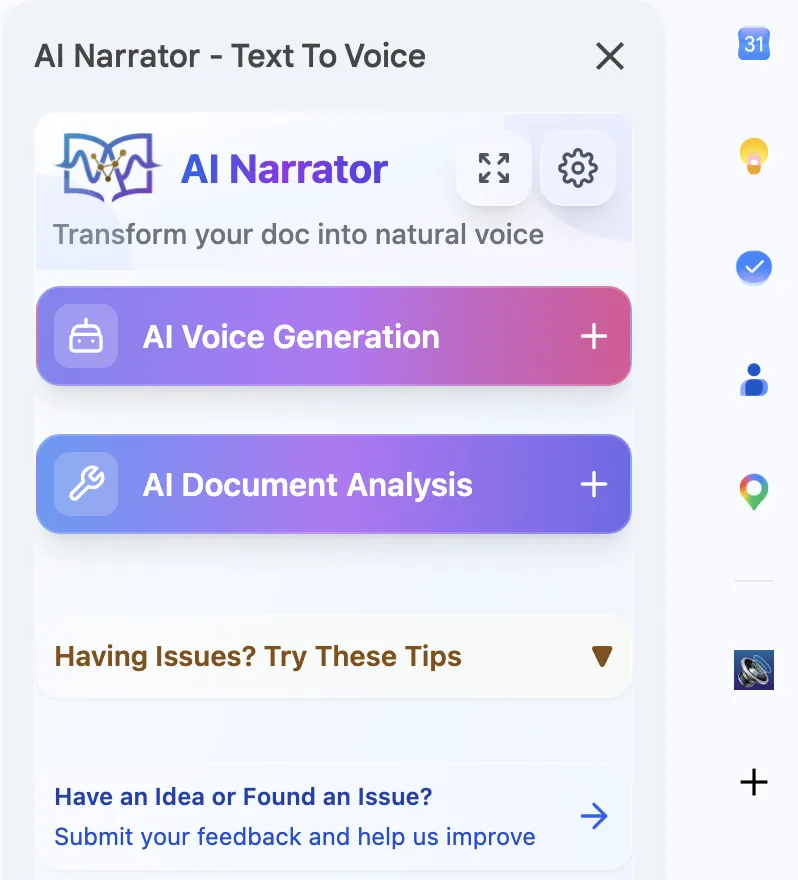
Want to hear these voices yourself?
Try our AI Narrator for free right now. No sign-up required.
Key Takeaways:
• Google Docs cannot record audio natively — there is no built-in voice recorder.
• Record on your phone, computer, or online, then link the file from Google Drive.
• Google Slides supports audio insertion; Google Docs does not.
• AI Narrator converts your Google Docs text into natural AI narration — no microphone needed.
• Pick the method by whether you need your own voice or AI narration.
The confusion is common because Slides handles audio so well. In Google Slides you can insert MP3 or WAV files from Drive directly into a slide and they play during your presentation. Docs has none of that: no inserting, no embedding, no playback. If you have seen audio work in Slides and assumed Docs does the same, you are not alone. The workarounds below bridge the gap.
| Feature | Google Docs | Google Slides |
|---|---|---|
| Record Audio | No | No |
| Insert Audio File | No (link only) | Yes (from Drive) |
| Play Audio In-Editor | No | Yes |
| Audio from Google Drive | Link in a new tab | Embed and play |
| Voice Recording | No | No |
Step 1: Open Your Phone's Voice Recorder
Open Voice Memos on iPhone or Recorder on Android. Both are pre-installed and ready immediately.
Step 2: Record Your Audio
Tap record and speak clearly. You can capture voice notes, narration, or feedback; the app saves automatically when you stop.
Step 3: Upload to Google Drive
In the Drive app, tap the plus button and upload the audio file. It syncs and becomes accessible from any device.
Step 4: Link in Your Google Doc
In your document, highlight the text, press Ctrl/Cmd + K, and paste the Drive link. Collaborators click the link to hear the audio.
Pro Tip: After uploading, right-click the audio file in Drive and choose "Share." Set access to "Anyone with the link can view" so collaborators and students can hear it without asking for permission.
Step 1: Open Voice Recorder
Search "Voice Recorder" from the Start menu; if it is missing, install it free from the Microsoft Store.
Step 2: Connect Your Microphone
A headset or USB condenser mic sounds better than a laptop's built-in mic, but any of them work. Windows detects the connected device automatically.
Step 3: Record Your Audio
Click the microphone icon, speak at a consistent volume, and stop when finished. The recording is saved with a timestamp filename.
Step 4: Upload to Google Drive
Drag the file from the Recordings folder onto drive.google.com, right-click to "Get link," and paste it into your Google Doc.
Step 1: Open Voice Memos
Use Spotlight (Cmd + Space) to find it. The interface is a large record button with your recordings listed on the left.
Step 2: Set Up Your Microphone
The built-in mic works, but an external USB mic or headset improves quality. Watch the input meter to avoid clipping.
Step 3: Record and Edit
Click the red button to record. When done, use Edit to trim the ends or replace a section without re-recording the whole take.
Step 4: Export and Upload
Right-click the recording, choose Share > Save to Files, then upload it to Google Drive and link it in your document (Insert > Link, or Ctrl/Cmd + K).
Step 1: Open an Online Recorder
Go to vocaroo.com or online-voice-recorder.com, and allow microphone access when prompted.
Step 2: Record Your Audio
Click record and speak. Most tools show a waveform so you can watch your levels. Stop when finished.
Step 3: Download and Upload
Download the MP3, upload it to Google Drive, and paste the link into your Google Doc.
Step 1: Upload Your Audio File
In drive.google.com, click "+ New" > "File upload" and choose your file. Drive handles MP3, WAV, OGG, FLAC, and M4A.
Step 2: Set Sharing Permissions
Right-click the file and choose "Share." Under General access, select "Anyone with the link" so collaborators do not hit a permission wall.
Step 3: Copy the Link
Click "Copy link." The URL now points directly to your audio file.
Step 4: Insert into Google Docs
Select the anchor text in your document, press Ctrl/Cmd + K, paste the Drive URL, and Apply. Your text is now a clickable link to the audio.
Important: Google Docs does not play audio inline — the link opens the file in a new tab or Drive's preview player. If you need audio that plays inside the same surface, use Google Slides instead.
Link to Audio in Google Drive
Insert a hyperlink to an audio file; it opens in Drive's preview player on click.Add a QR Code
Generate a QR code that opens the audio file, and insert the QR image into the doc.Link to a Slides Audio Player
Embed audio in a Google Slide, then link to that slide from your Doc — a workaround, but functional.
Why AI Narrator? Recording your voice takes time, needs a quiet space, and produces uneven quality. AI Narrator gives you consistent narration in 21 languages with 32 voices and 19 presets — no microphone, no room treatment, no retakes.
32 Natural AI Voices
Voices that sound human, with natural intonation and pacing21 Languages
Generate narration in English, Spanish, Portuguese, French, German, Japanese, Hindi, and moreWorks Inside Google Docs
A native sidebar — no tab-switching or copy-pastingDownload Audio Files
Export narration as WAV on the Pro plan for podcasts, presentations, e-learning, or offline listening
Step 1: Install AI Narrator
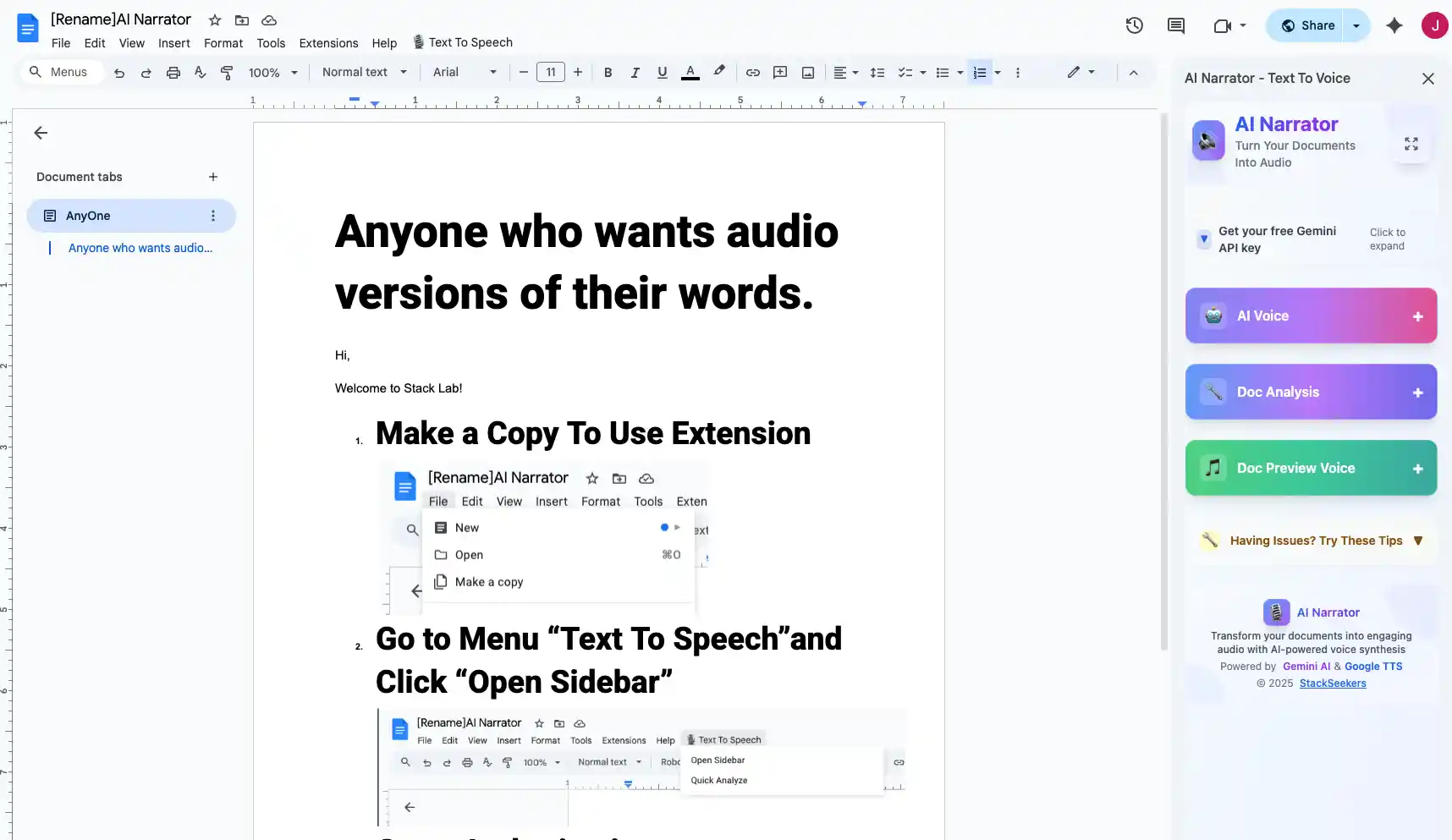
Install the add-on from the Google Workspace Marketplace. It integrates directly with Google Docs.
Step 2: Open Your Google Document
Open the document you want narrated. The AI Narrator sidebar appears on the right; if not, open it under Extensions > AI Narrator.
Step 3: Choose a Voice
Pick one of the 32 voices or a preset like Storyteller or Lecture & Concepts, and preview it before generating.
Step 4: Generate Narration
Highlight the text to narrate, or leave nothing selected for a full-document read. Click Generate and the audio plays back with natural prosody. A conversion covers up to 10,000 characters.
Step 5: Download Your Audio
On Pro, click download to save a WAV file — upload it to Drive and link it in the doc if you want, or use it directly in presentations, podcasts, and e-learning modules.
| Factor | Record Your Voice | AI Narrator |
|---|---|---|
| Time to Produce | Setup, recording, cleanup | Generate in minutes |
| Audio Quality | Depends on mic and room | Consistent, clean output |
| Editing Required | Usually trim and remove noise | None after generation |
| Language Support | Your language only | 21 languages |
| Cost | Mic and quiet space required | Free plan; Pro ~$7/mo |
| Background Noise | Risk of echo and interference | Digitally generated, no noise |
| Scalability | One recording at a time | Large volumes on Pro (100 TTS/mo) |
| Ease of Use | Needs quiet space and mic | Click Generate — done |
Ready to Try AI Narrator?
Start converting your Google Docs into professional audio today. Free forever!
Add to Doc - It's free