Google Docs Audio Reader: Listen to Your Documents Effortlessly
Turn Google Docs into an audio reader with text-to-speech. Learn how to listen to your documents with natural AI voices for proofreading, accessibility, and multitasking.
Quick Answer
A Google Docs audio reader converts your document into spoken audio. AI Narrator is a solid choice: a Google Docs add-on with 29+ natural AI voices across 21 languages, 19 presets, and WAV downloads on Pro for offline listening.
An audio reader turns written text into spoken words. In the context of Google Docs, that means you can listen to your document instead of staring at the screen — useful for proofreading, multitasking, reducing eye strain, and supporting accessibility needs. The difference between a basic browser reader and a purpose-built audio reader is voice quality and control. My experience with system readers was consistently robotic; the moment I switched to a neural voice, listening became something I wanted to do rather than tolerated.
Natural Listening
Voices that sound human and engaging rather than flat and mechanicalHands-Free Operation
Listen while commuting, cooking, or exercising — no screen requiredReduced Eye Strain
Give your eyes a break with extended audio playbackMulti-Language Audio
Voice content in 21 languages with native-sounding speakers
Want to hear these voices yourself?
Try our AI Narrator for free right now. No sign-up required.
Step 1: Set Up AI Narrator
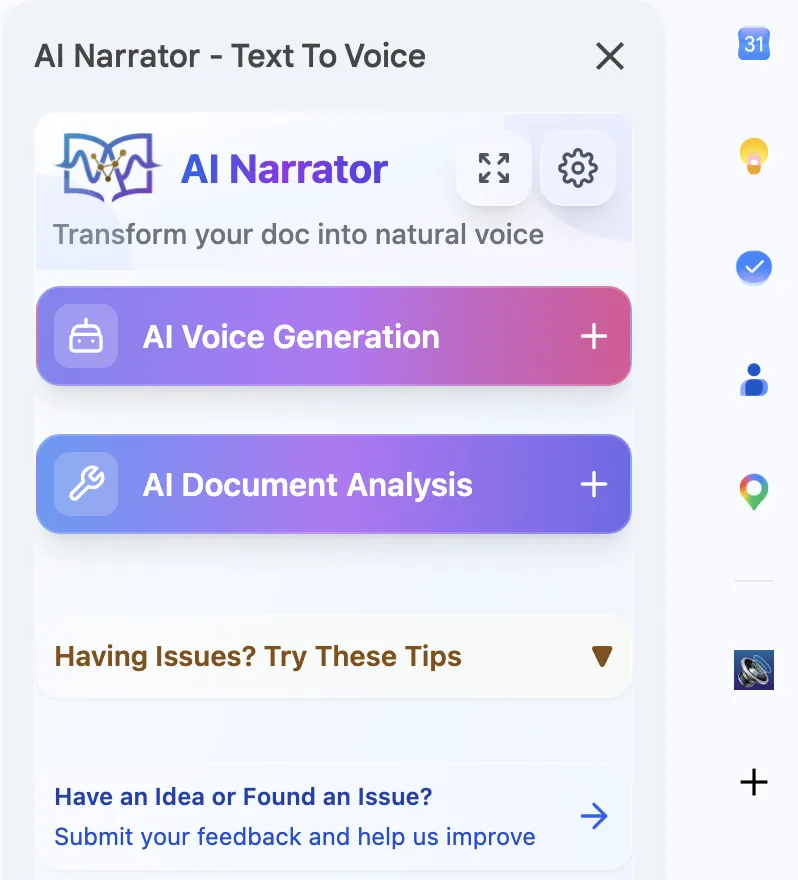
Install the AI Narrator add-on from the Google Workspace Marketplace or Chrome Web Store. It adds an audio-reader panel directly to Google Docs.
Step 2: Open Your Document
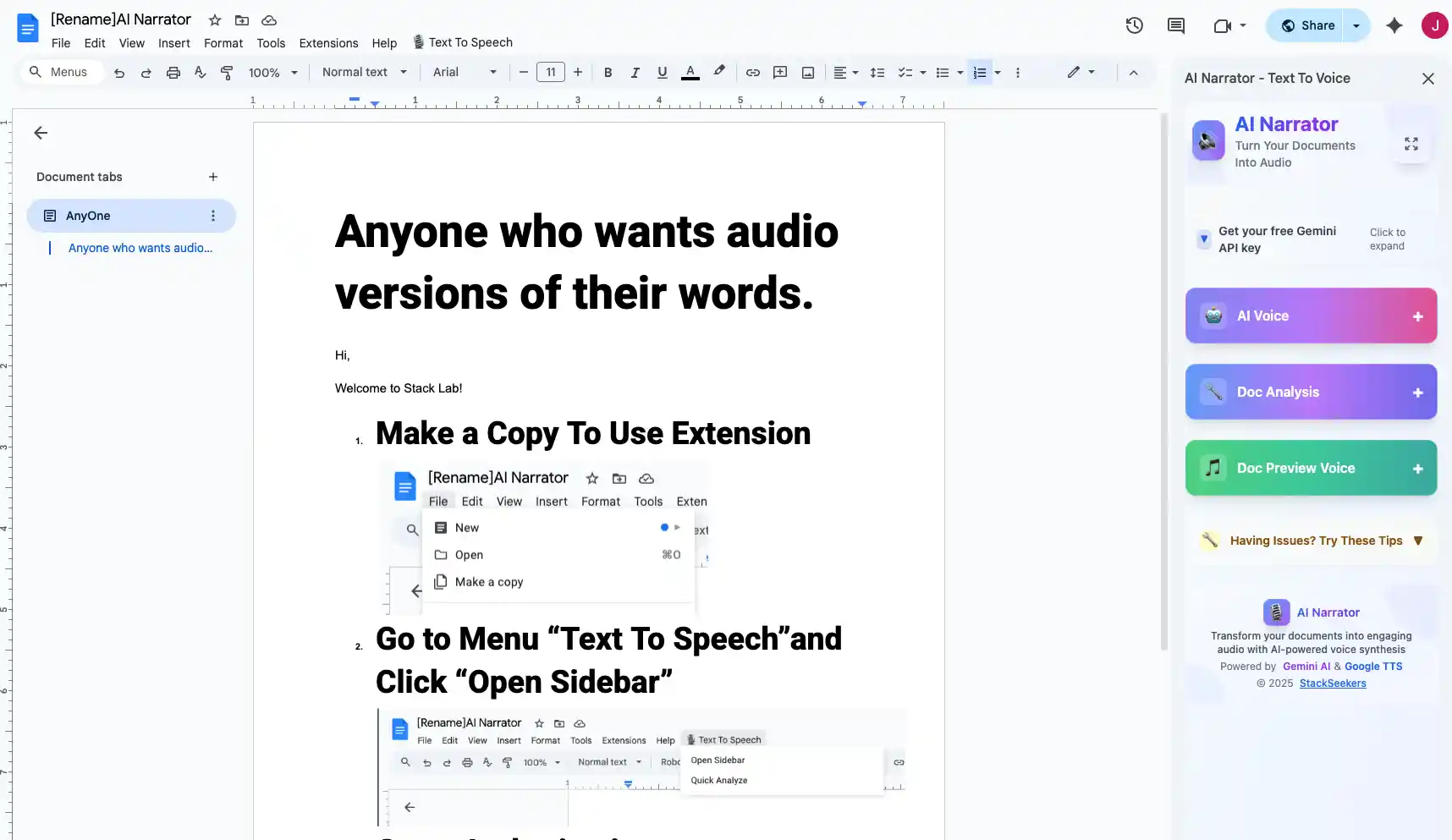
Open any Google Doc. The AI Narrator panel sits on the right side of your editor, ready to read the document you are looking at.
Step 3: Choose a Voice
Browse the 29+ available voices or pick one of the 19 presets — Storyteller, ASMR & Relaxation, Executive Pitch, and more. Preview any voice before you commit.
Step 4: Start Listening
Click play to start reading, or highlight a specific section first to listen to only that text. Use the playback controls and speed setting to customize the experience. If you leave no selection, the whole document reads top to bottom.
Audio readers improve comprehension of complex documents, which is why I recommend them to students. They make it possible to consume a document while doing something that prevents screen reading. For proofreading, listening to your own text is one of the most effective editing techniques I know — repeated words and awkward rhythm surface immediately in speech. And for users with dyslexia or low vision, a reliable audio version is not a feature, it is access. Natural prosody matters here: a reader that swallows punctuation you simply cannot track long documents.
My default playback speed is 1x for unfamiliar technical material and up to 1.5x for familiar text like my own drafts. The useful range depends on the voice: a clean neural voice stays intelligible at 1.5x, while a robotic system voice starts to mush at anything above 1x. I also leave the default speed higher for listing and lower for absorbing. This is a personal rather than scientific observation, but it is consistent with how I coach students: find the fastest speed at which you can still paraphrase what you just heard, then back off one notch for studying.
| Use Case | Benefit | AI Narrator Feature |
|---|---|---|
| Proofreading | Catch errors and awkward phrasing by ear | Natural voice playback |
| Studying | Retain more of what you listen to while reviewing | Speed control |
| Content Review | Review long drafts hands-free | Full-document read |
| Accessibility | Support for visual impairments and dyslexia | 21 languages, natural voices |
| Language Learning | Hear native pronunciation | Language-specific voices |
It is worth clearing up a common confusion. A screen reader (like ChromeVox or NVDA) is a navigation tool for people who cannot use a screen at all — it reads menus, buttons, and document structure, and it is driven by keyboard shortcuts. An audio reader is a playback tool: it reads the document text aloud and, at most, skips between paragraphs. They serve different users. If you need keyboard-based navigation, enable Google Docs screen reader support under Tools > Accessibility settings. If you want to listen to your writing, an audio reader is the right tool, and it coexists with screen reader support rather than replacing it.
The habit that stuck with me is sectioning the day's reading. I open the document I plan to review, highlight the section I want, and generate only that part — a 10,000-character cap per conversion makes section-by-section the natural unit anyway. For a report I need to deeply understand, I generate a WAV on the Pro plan and listen twice: once to orient, once to take notes. For lighter documents, I listen once in the sidebar while I do something else. Keep the failures in mind too: read-aloud tools error on text boxes and comments, so keep those out of the flow content you narrate.
Ready to Try AI Narrator?
Start converting your Google Docs into professional audio today. Free forever!
Add to Doc - It's freeTwo competitors set the bar for consumer listening, and I compared them against the add-on route. Speechify advertises more than a thousand voices, 60+ languages, and tens of millions of users, with Premium around $139 a year; its voices are natural and its mobile apps are excellent, but its consumer plans are aimed at personal use rather than document export. NaturalReader has a strong free tier and over 100 languages, with OCR and voice cloning in paid plans — a genuine alternative if you mostly read PDFs. What neither does is sit inside a Google Doc and read it by structure; that is the add-on's differentiator, and it is why I switch to AI Narrator whenever the source lives in Docs.
An honest note: any cloud-based TTS sends your text to a server to synthesize speech, so never paste or generate text that should not leave your machine. For sensitive documents, check the tool's data practices before use, and prefer providers with clear policies and enterprise certifications where confidentiality matters. On the free tier you are also sharing the conversion allowance anonymously, so treat it accordingly. This is not unique to AI Narrator — it applies to every hosted reader in this guide.
Use headphones for focused listening, especially for dense documents. Adjust playback speed to match comprehension — slower for unfamiliar subjects, faster for familiar material. Choose a voice that fits the document's tone; I keep one warm voice for long-form listening and switch to a crisper one for technical text. For multi-language documents, see our multilingual TTS coverage of AI Narrator's 21 languages.
Disclosure
Some of the tools compared on this site — including AI Narrator — are our own products. We review them on the same footing as competitors, on current pricing and hands-on testing, and always tell you when a product is ours.