How to Convert Google Docs to Audio Files
Learn multiple methods to convert your Google Docs into audio files. From AI Narrator to built-in tools, find the best approach for your needs.
Quick Answer
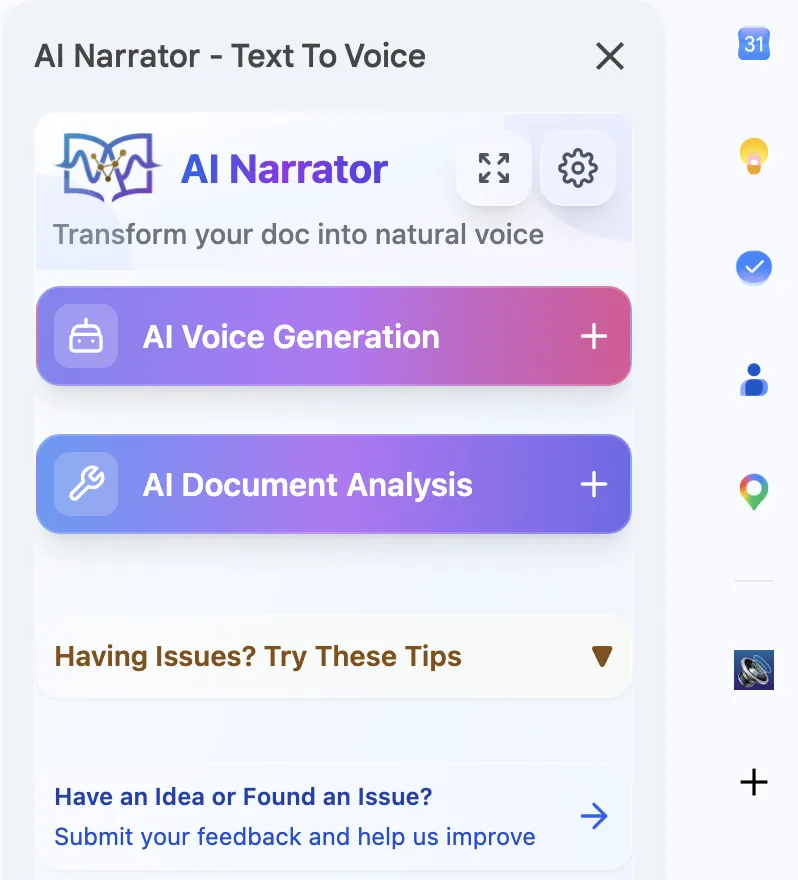
To convert a Google Doc to audio, install the AI Narrator add-on, open your document, and generate the narration. You get 29+ AI voices across 21 languages, with up to 10,000 characters per conversion on the free plan; WAV download is a Pro feature.
Want to hear these voices yourself?
Try our AI Narrator for free right now. No sign-up required.
AI Narrator integrates directly with Google Docs and uses neural voices (built on Google's Gemini TTS) to turn documents into audio. Because it reads the document structure, formatting like headings and paragraphs carries over into natural pacing. You can convert an entire document or a selected section.
One-Click Conversion
Generate audio directly from your document.29+ AI Voices
A range of voices across 21 languages and 19 presets.WAV Export (Pro)
Download high-quality WAV files on the Pro plan.10,000-Char Limit
Each TTS conversion accepts up to 10,000 characters.
Step 1: Install AI Narrator
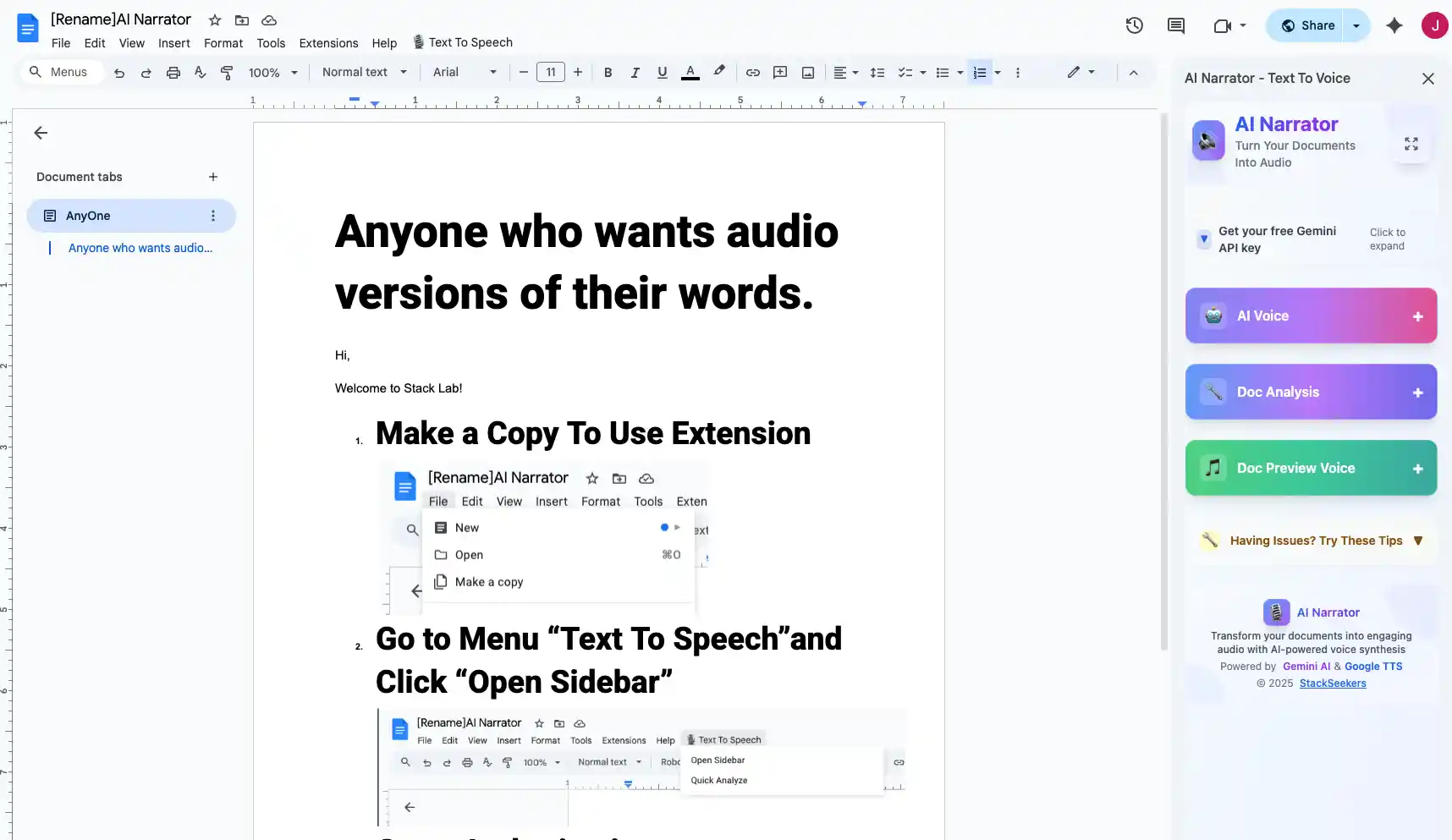
Add the AI Narrator add-on from the Chrome Web Store or the Google Workspace Marketplace. It appears in the Extensions menu of your documents.
Step 2: Open Your Document
Open the Google Doc you want to convert. Click AI Narrator in the Extensions menu to open the sidebar.
Step 3: Choose Voice and Settings
Select from the available voices (32 across 21 languages) and pick a preset that matches your content. Preview the voice before generating.
Step 4: Generate and Download
Click generate to convert the text. Once processing finishes, play the audio or download it as a WAV file (Pro). The free plan allows 5 conversions per month; Pro is about $7/month for 100.
Google Docs has basic read-aloud through Chrome's accessibility features — select text, right-click, and choose "Read aloud." This is playback only: you can't download an audio file, and the voice quality depends on your system's TTS. It's fine for a quick listen but not for producing files.
Ready to Try AI Narrator?
Start converting your Google Docs into professional audio today. Free forever!
Add to Doc - It's freeSeveral online tools claim to convert documents to audio, but in practice most require copy-pasting text into their platform, which strips formatting. They also often cap voices, add watermarks, or restrict downloads behind payment. For documents that stay in Google Docs, a native add-on avoids all of that.
| Method | Quality | Download | Voice Options |
|---|---|---|---|
| AI Narrator | High (neural) | WAV (Pro) | 32 across 21 languages |
| Chrome TTS | Basic | No | System only |
| Online Converters | Varies | Often paywalled | Varies |
| Screen Readers | Basic | No | System only |
To get the highest quality audio, format your document with clear headings and paragraphs, choose a voice that matches your content, and preview before generating the full file. For non-English documents, use our multilingual TTS guide to select the right voice.
Disclosure
Some of the tools compared on this site — including AI Narrator — are our own products. We review them on the same footing as competitors, on current pricing and hands-on testing, and always tell you when a product is ours.