Google Docs Accessibility: Text-to-Speech for Inclusive Document Access
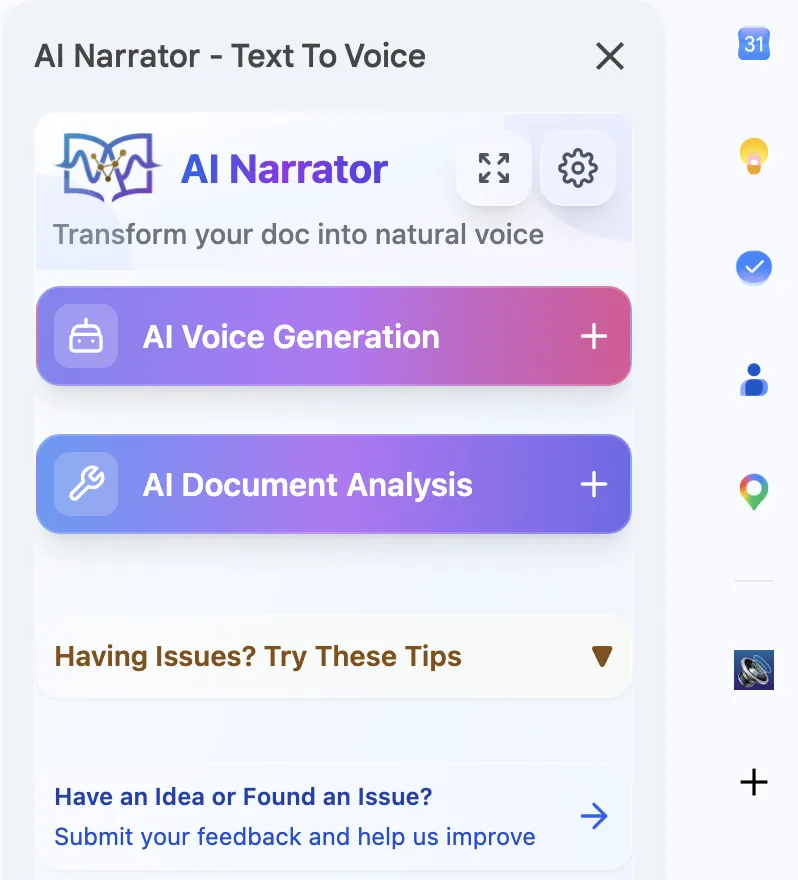
Want to hear these voices yourself?
Try our AI Narrator for free right now. No sign-up required.
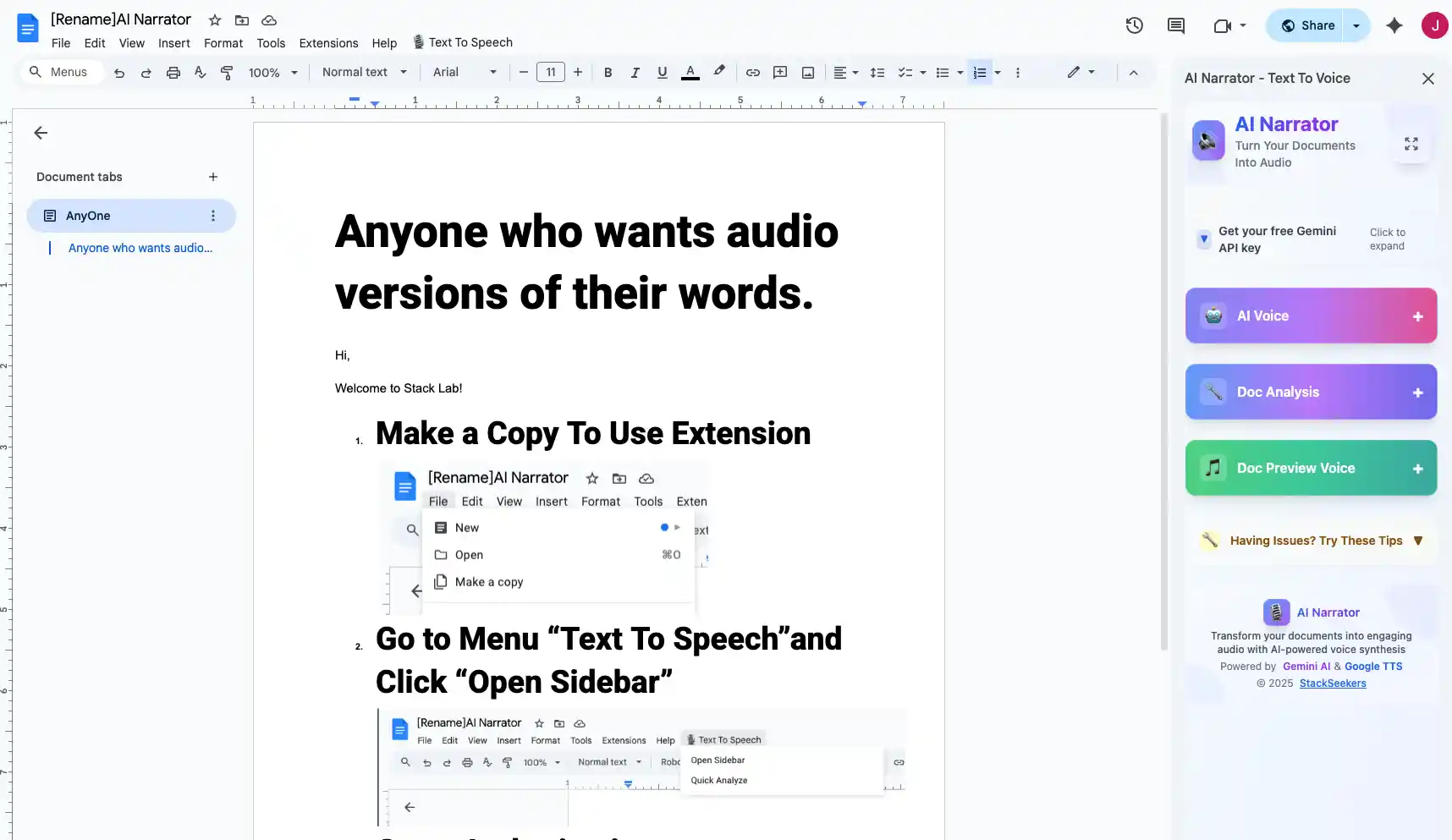
Quick Answer: To make Google Docs accessible with text-to-speech, enable screen reader support in Tools settings, then install AI Narrator for natural-sounding audio playback. It offers 32 voices in 15+ languages and WAV export for offline listening.
Over 1 billion people worldwide have some form of disability. Making Google Docs accessible means ensuring that everyone — regardless of ability — can read, write, and collaborate effectively. Text-to-speech is one of the most impactful accessibility tools available.
Screen Reader Support
Compatible with JAWS, NVDA, and ChromeVox screen readersHigh-Contrast Mode
Google Docs supports high-contrast display settingsVoice Typing
Dictate text instead of typing with Google Voice TypingAudio Playback
Listen to documents with AI-powered text-to-speech
Google Docs offers several native accessibility features. The built-in screen reader support works with popular assistive technologies. Keyboard shortcuts allow navigation without a mouse. Voice typing enables hands-free writing. However, for high-quality audio playback of your documents, a dedicated TTS extension is recommended.
Step 1: Enable Accessibility Settings
Go to Tools > Accessibility settings in Google Docs. Check "Turn on screen reader support" to enable enhanced compatibility.
Step 2: Install AI Narrator for Audio Playback
For natural-sounding document reading, install AI Narrator from the Chrome Web Store. It adds high-quality voice playback to any Google Doc.
Step 3: Adjust Reading Preferences
Choose from 32 voices, adjust playback speed, and select your language. AI Narrator preserves document structure, reading headings and paragraphs with appropriate pauses.
AI Narrator goes beyond basic screen readers by offering natural-sounding AI voices that reduce listening fatigue. Users can adjust speed, choose voices in their native language, and convert documents to audio files for offline listening. For proofreading, listening to your document helps catch errors that visual review misses.
| Feature | Google Docs Built-in | AI Narrator |
|---|---|---|
| Screen Reader | Basic support | Natural voices |
| Voice Typing | Yes | N/A |
| Audio Export | No | WAV download |
| Voice Options | Limited | 32 voices |
| Multi-language | Limited | 15+ languages |
Creating accessible documents benefits everyone. Use headings, alt text for images, and descriptive links. Pair these practices with AI Narrator for a fully accessible document experience. For non-English speakers, our multilingual TTS guide shows how to access content in different languages.
Ready to Try AI Narrator?
Start converting your Google Docs into professional audio today. Free forever!
Download Free Now