Multilingual Text to Speech: Listen to Google Docs in Any Language
Quick Answer: AI Narrator supports 15+ languages with native-accented AI voices for Google Docs. Install the Chrome extension, select your language from the sidebar, and generate natural-sounding audio with authentic pronunciation in seconds.
AI Narrator offers voices in English (US, UK, Australian, Indian), Spanish, French, German, Italian, Portuguese, Japanese, Korean, Chinese, Arabic, Russian, Dutch, Polish, and more. Each language features multiple voices with different styles — professional, conversational, warm, and authoritative.
15+ Languages
Broad language coverage for global usersNative Accents
Regional accents for authentic pronunciationMultiple Voices
Choose from 2-5 voices per languageLanguage Detection
AI Narrator detects document language automatically
Step 1: Install AI Narrator
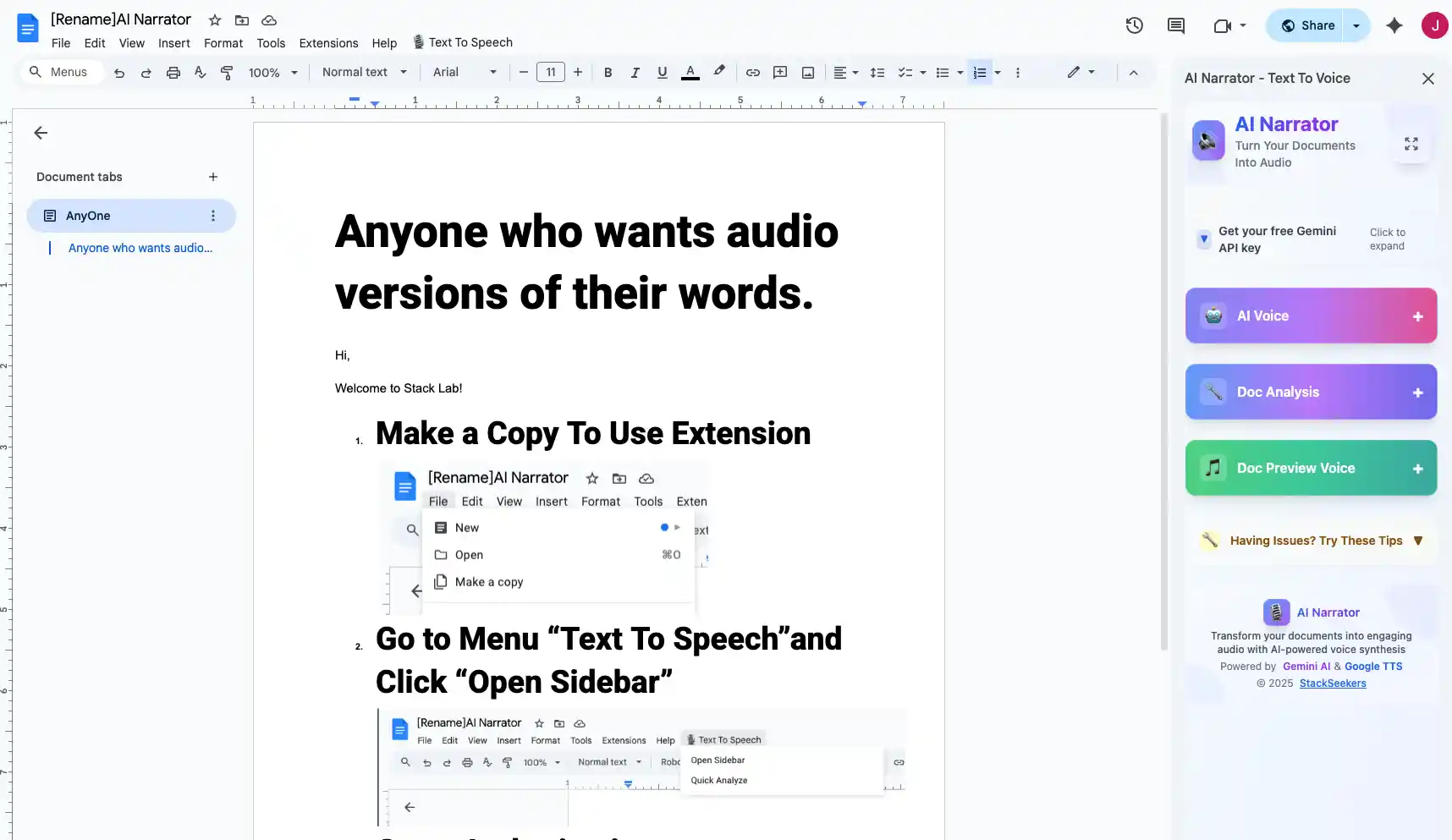
Get the AI Narrator extension from the Chrome Web Store. Installation takes seconds and works immediately with Google Docs.
Step 2: Open a Multilingual Document
Open any Google Doc containing text in your target language. AI Narrator supports mixed-language documents too.
Step 3: Select Your Language
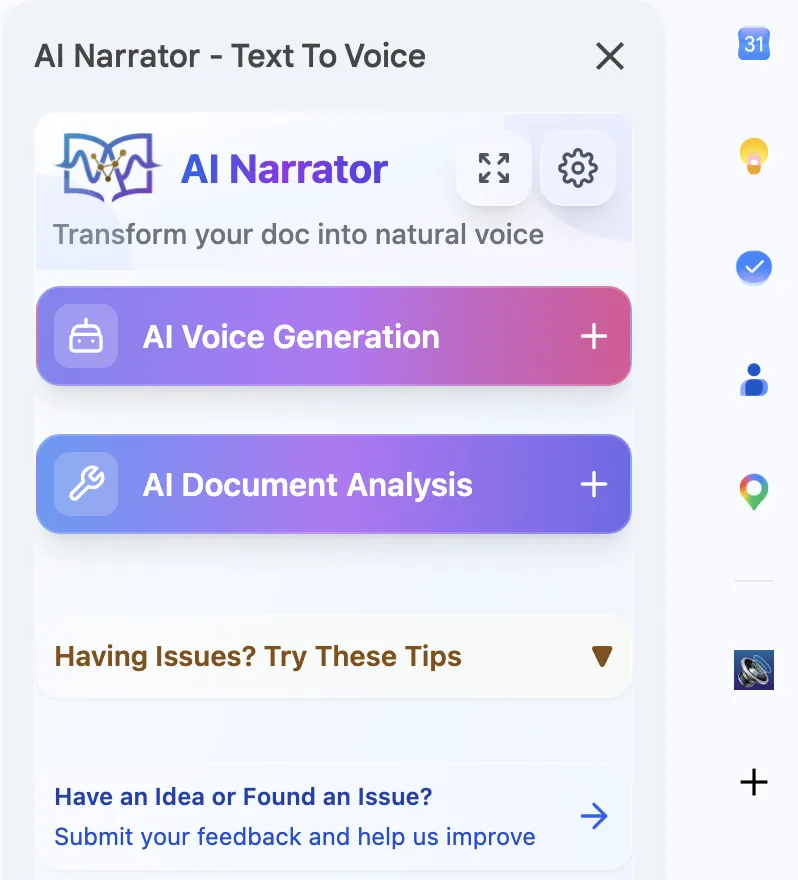
In the AI Narrator panel, choose the language that matches your document. Browse regional variants — for example, English offers US, UK, and Australian voices.
Step 4: Generate and Listen
Click generate to create audio in your selected language. The voice will use authentic pronunciation and natural intonation for that language.
Language learners can listen to native pronunciation of foreign texts. International businesses can convert documents for global teams. Content creators can produce audio in multiple languages from a single source document. For accessibility, multilingual support ensures non-native speakers can access content in their preferred language.
| Language | Voices Available | Accent Options | Naturalness |
|---|---|---|---|
| English | 5 | US, UK, AU, IN | Excellent |
| Spanish | 3 | Castilian, Latin American | Excellent |
| French | 2 | French, Canadian | Excellent |
| German | 2 | Standard | Excellent |
| Japanese | 2 | Standard | Very Good |
For optimal pronunciation, ensure your document's language matches the selected voice. AI Narrator attempts auto-detection but manual selection gives best results. For documents with mixed languages, convert each section separately with the appropriate voice. Use our audio reader for hands-free listening.
Want to hear these voices yourself?
Try our AI Narrator for free right now. No sign-up required.
Ready to Try AI Narrator?
Start converting your Google Docs into professional audio today. Free forever!
Download Free Now