Google Docs Accessibility: Text-to-Speech for Inclusive Document Access
Quick Answer
To make Google Docs accessible with text-to-speech, enable screen reader support in Tools > Accessibility settings, then install AI Narrator for natural-sounding playback — 29+ voices across 21 languages, with WAV export on Pro for offline listening.
Disability is not a niche concern. Beyond permanent conditions like low vision, temporary situations — a broken arm, tired eyes, or reading on a noisy commute — all make audio access valuable. The World Health Organization estimates that over a billion people live with a disability, and that figure grows when you count older adults with age-related hearing and vision changes. Google Docs being free and web-based means it is often the default classroom and workplace tool, so making it speak naturally is a high-leverage fix.
Want to hear these voices yourself?
Try our AI Narrator for free right now. No sign-up required.
Screen Reader Support
Works with JAWS, NVDA, ChromeVox, and VoiceOver; enable it under Tools > Accessibility settingsHigh-Contrast Mode
Google Docs supports browser and OS-level high-contrast display settings for low-vision usersVoice Typing
Dictate text instead of typing with Google's built-in Voice Typing (Tools > Voice typing)Audio Playback
Listen to documents with AI-powered text-to-speech for natural, fatigue-free audio
Google Docs has several native accessibility features worth knowing about. The built-in screen reader support is carefully documented by Google and lets assistive tools read navigation landmarks, headings, and document structure. Keyboard shortcuts allow full document navigation without a mouse. Voice Typing enables hands-free writing. What these native features do not provide is a pleasant, downloadable reading voice — so a dedicated TTS extension is usually the practical answer for comfortable audio.
Step 1: Enable Accessibility Settings
Go to Tools > Accessibility settings in Google Docs and check "Turn on screen reader support." This improves compatibility with NVDA, JAWS, and VoiceOver.
Step 2: Install AI Narrator for Audio Playback
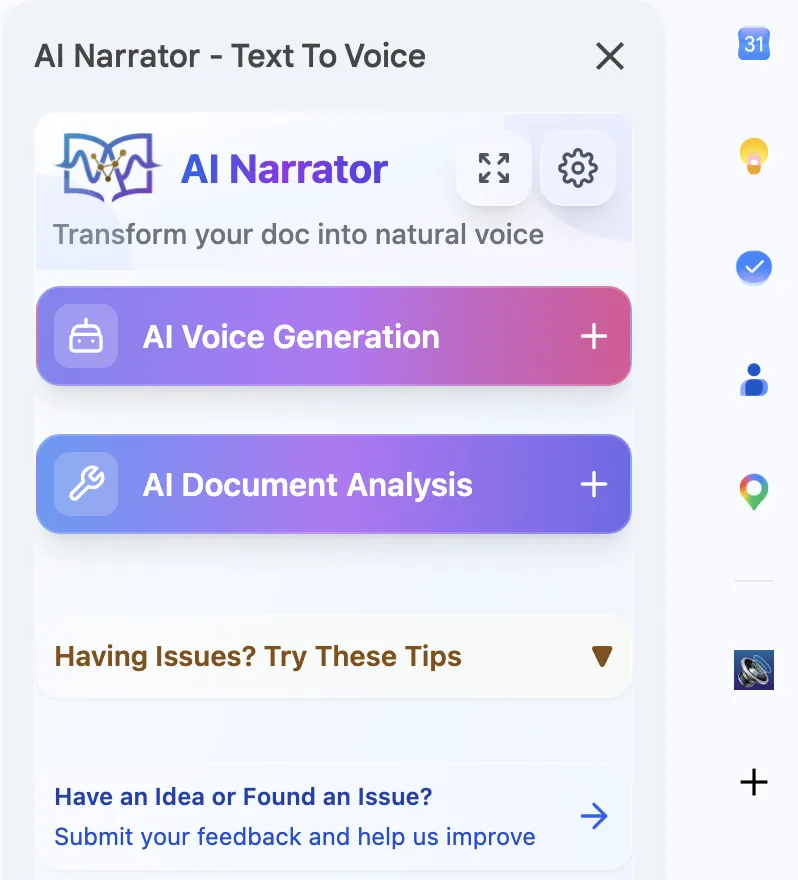
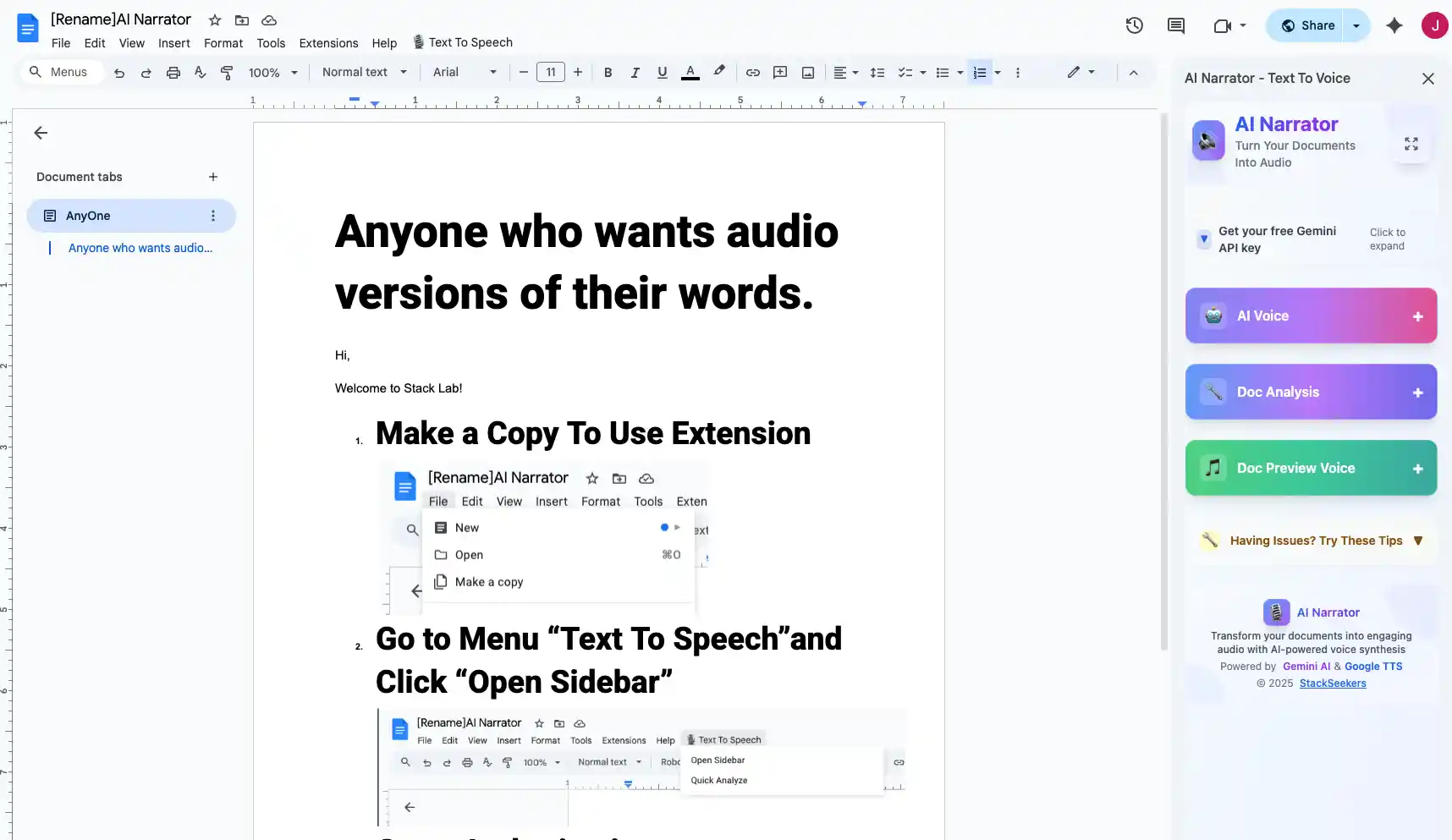
For natural-sounding document reading, install AI Narrator from the Google Workspace Marketplace. It adds a sidebar to any Google Doc and reads with human-like voices instead of system tones.
Step 3: Adjust Reading Preferences
Choose from 29+ voices across 21 languages, or start from one of the 19 presets, and adjust pacing with [bracket] tags. AI Narrator respects headings and paragraphs, inserting pauses where a human narrator would breathe.
AI Narrator builds on top of the same document structure your screen reader uses, so adding it does not fight the native accessibility model. The default engine is Google Gemini TTS, which reads with more natural prosody than a system voice. Users can pick a native-language voice from 21 languages, tune speed and emotion, and convert documents to audio files for offline listening. For proofreading, listening to your document catches errors that visual review misses — a benefit I rely on myself before publishing anything.
| Feature | Google Docs Built-in | AI Narrator |
|---|---|---|
| Screen Reader Support | Basic compatibility | Natural neural voices |
| Voice Typing | Yes | N/A |
| Audio Export | No | WAV download (Pro) |
| Voice Options | Limited to system voices | 29+ voices, 19 presets |
| Languages | System-based | 21 languages |
Accessible documents are better documents for everyone. Use real heading styles, add alt text to images, and write descriptive link labels — then pair those habits with a TTS tool. A few structural minutes up front translate directly into better audio, because the reader pauses where your headings and paragraphs do. For non-English speakers, our multilingual TTS guide shows how the same document can be voiced across AI Narrator's 21 supported languages.
Ready to Try AI Narrator?
Start converting your Google Docs into professional audio today. Free forever!
Add to Doc - It's freeListening is not a replacement for reading — it is a second channel that reinforces the first. Learners who struggle with decoding, or who have weak working memory, can offload the effort of sounding words out and spend that mental energy on meaning. Reviewers who have read a draft three times still hear a fourth problem the eye skipped. Rather than choosing between text and audio, treat them as paired: headings and structure carry the outline, the voice carries the emphasis, and together they are easier to follow than either alone. Whether you are the reader or the writer, the pairing is the point.
When you evaluate any text-to-speech tool for accessibility, I suggest checking five things. First, voice quality — sample a whole paragraph, not the one-line demo. Second, language coverage, especially if your audience is multilingual. Third, whether the tool respects document structure, or just reads flattened text. Fourth, whether you can export audio for offline access. Fifth, how the free tier is capped, because accessibility is only helpful if it is affordable. On all five, an in-editor add-on with natural voices and a real free plan holds up well; I will say plainly, though, that the tools below are genuinely good at what they do, just for slightly different jobs.
Speechify is the best-known consumer reader — it advertises more than a thousand voices, over 60 languages, and tens of millions of users, with Premium around $139 a year. NaturalReader has a strong free tier, more than 100 languages, and adds voice cloning and OCR on paid plans. Both are excellent at reading web pages and PDFs, and they matter to people with print disabilities. What they largely do not do is read a Google Doc in place and hand you a WAV file at the end — which is the narrower job this guide covers. Depending on your workflow, either approach can be the right one.
Sources
Disclosure
Some of the tools compared on this site — including AI Narrator — are our own products. We review them on the same footing as competitors, on current pricing and hands-on testing, and always tell you when a product is ours.